The Maintenance screen: seeing what needs service
A tour of the Maintenance screen, with its three views, the Overdue / Due Soon / OK counts, how each status is worked out, the filters, the first-time setup card and the daily reminder email.
Where to find it
Maintenance (left sidebar)
The Maintenance screen is where you keep your gear in working order. It shows every recurring service you have set up (oil changes, tire checks, annual inspections), tells you what is due, and lets you record the work when it is done. Each recurring service is called a task, and each machine you rent is a card.
Where to find it
Click Maintenance in the left sidebar. Owners, managers and staff can all view and use it. Hover over Maintenance to reach Templates, which is covered in Maintenance templates.
The page title is "Maintenance", with the line "Track service across your fleet. Log work quickly — by one machine or in batches." Archived machines and retired machines do not appear.
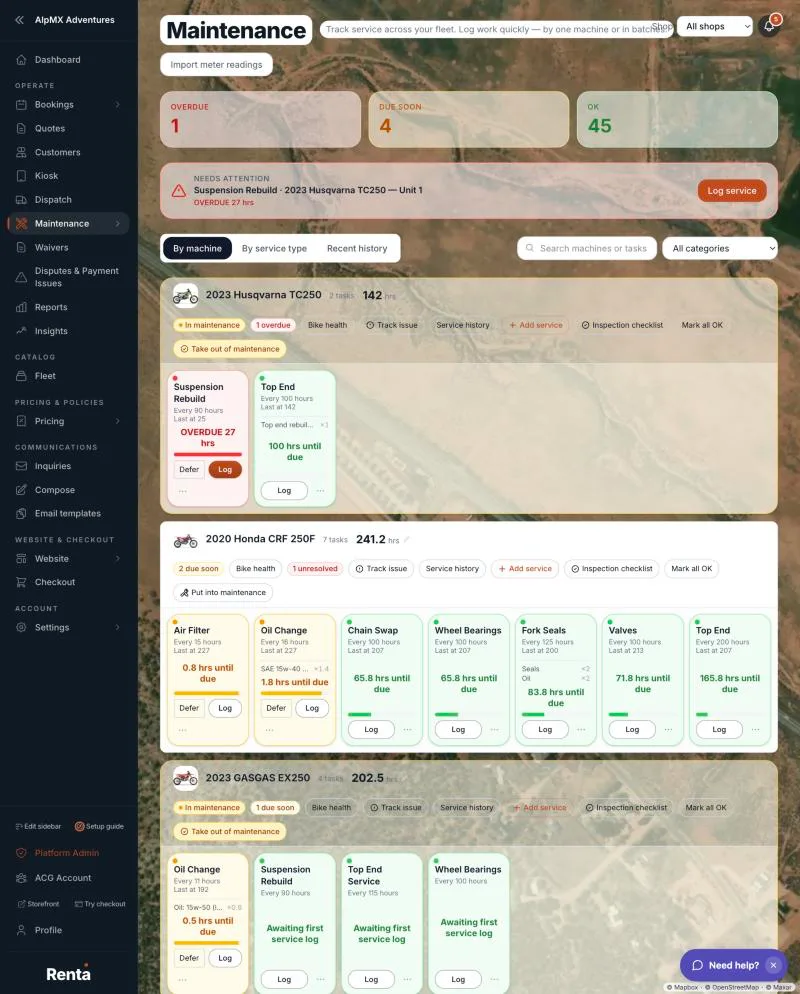 The Maintenance screen on the By machine view, with the Overdue, Due Soon and OK tiles above the machine cards
If you have not set anything up yet
A card titled Set up maintenance in two steps explains the order: create a template of recurring service tasks, then apply it to your machines. Due dates and meter tracking start automatically. Its links are Create a template and or add tasks to one machine (or or turn on tracking for a machine first if no machine is tracked yet).
The header and filter row
- Import meter readings (in the page header) — updates usage counters for many machines from a spreadsheet. See Importing meter readings from a spreadsheet.
- Search machines or tasks — filters the page as you type.
- A category drop-down ("All categories" plus each of your categories).
The three views
Use the buttons above the list. By machine is the default, and the screen does not remember your last choice.
- By machine — one card per machine with its tasks as tiles, a meter, and action buttons. A machine with tracking switched on but no tasks still gets an empty card. Cards are ordered overdue first, then due soon, then OK, then machines with no tasks. A section called "Checklist items — added to pickup/return, no due date" lists tasks that only appear on checklists.
- By service type — pick one service (for example "Oil change") and log it on many machines at once. See Logging service and adjusting tasks.
- Recent history — every service you have logged, grouped by machine, newest first. It loads the newest 50 entries. Click an entry to edit it.
The Overdue, Due Soon and OK tiles
Three tiles sit above the cards on the By machine and By service type views. Each shows a count. Click a tile to show only those tasks (a line says, for example, "Showing overdue bikes only" with a View all bikes button). Click the tile again to clear it.
- The counts are for tasks on units, not machines. A machine with five units and one overdue task adds five to Overdue, one for each unit.
- The counts ignore your search and category filter.
- Tasks that only appear on checklists are not counted.
- New tasks that have never been logged count under OK, and so do deferred tasks.
A Needs attention card shows the single most neglected task (the worst overdue one that is not deferred, or else the worst due-soon one) with a Log service button.
How a task becomes Due Soon or Overdue
Each task has an interval, and Renta measures how far through it you are. The rule depends on what the interval counts:
| Interval counts | Due Soon when | Overdue when | |---|---|---| | Hours | 80% of the way through | The meter reaches the next-due reading | | Miles, Util. days, Uses | 80% of the way through, or 5 or fewer left | The meter reaches the next-due reading | | Days, Weeks, Months (time since the last log) | 80% of the way through, or 3 or fewer days left | The full interval has passed | | On a date (fixed date) | Within the number of days before it that you chose to be alerted (at least 3) | The date has passed |
A week counts as 7 days and a month as 30 days. Fixed dates are compared at midnight UTC (universal time). A one-time date task that was logged on or after its due date reads OK.
A task that has never been logged reads OK with "Awaiting first service log". The exception is a weekly task tied to a weekday, which reads Due Soon with the next due weekday.
Util. days, Uses, Hours and Miles are four kinds of meter. Hours and Miles you enter yourself. Uses and Util. days (utilization days) go up automatically when a booking is completed on a unit that has maintenance tracking switched on: one use per booking, and one utilization day for each rental day (rounded up).
Filters on each view
- The search box and the category drop-down work on every view. The status tiles do not apply to Recent history.
- Machines with sizes in their unit labels (like L-2) get All sizes and All units drop-downs on their card. Choosing a unit makes the card's buttons act on that unit only.
- By service type has its own All machines, All sizes and All units drop-downs, plus Clear, Select all and Clear all.
- A banner "Showing maintenance for:" with a × Clear button appears when you came from a machine's Service history button.
Actions on a machine card
Each card has these buttons. A machine with several units shows them for each unit, so you act on exactly the unit you mean.
- Add service — adds a recurring task or records a one-time job for that machine (or for one unit, in a unit's own section). See Logging service and adjusting tasks.
- Log service, Defer and the More actions menu on each task tile. See Logging service and adjusting tasks.
- Update counters and Mark all OK. Same article.
- Put into maintenance or Take out of maintenance. See Temporarily hiding an item for service.
- Inspection checklist. See Requiring an inspection before a rental goes out and Post-ride (return) inspection checklist.
- Track issue, described next.
- Service history, which opens Recent history filtered to that machine.
Track issue
Track issue is a short to-do list for one unit, for problems that are not scheduled service (a cracked mirror, a noisy chain). It shows badges such as "2 unresolved" or "1 in progress".
1. Click Track issue on the unit. 2. Enter a Title (required) and an optional Description, then add it. 3. Change an issue's status to Unresolved, In progress or Resolved, and add notes with Add note. 4. Tick Show resolved issues to see old ones. The list says "No issues tracked for this unit" when it is empty.
Issues are notes for your team. Raising one does not take the unit out of service or change any booking. To stop a unit being booked, use Put into maintenance.
The daily maintenance email
At the bottom of the page, the daily maintenance email card has:
- Email me a daily summary of upcoming maintenance — a checkbox, on by default.
- Send to — the address to use. Leave it blank to use your business contact email. A bad address gives "Enter a valid email address, or leave this blank."
- Save, which changes to Saved.
The footer reads "Sent once a day when a date or weekly reminder is coming due." That is exactly what triggers it:
- Date tasks ("On a date") email on each day that is one of the alert days before the due date, and on the due date itself.
- Weekly tasks tied to a weekday email on that weekday.
- Tasks measured in hours, miles, uses, utilization days, plain days or months never trigger an email. Check the Overdue and Due Soon tiles for those.
The email is titled with the number of items, for example "2 maintenance items need attention", and lists each as machine, task and "Due today", "Due tomorrow" or "Due in N days", with a View in Maintenance link. It is sent once a day. Renta starts checking at 13:00 UTC (universal time), and a send that fails is tried again later the same day. If there is no address to send to, nothing is sent.
Example
Open Maintenance on Monday. Overdue shows 3. Click the tile, and the cards show only the overdue tasks, with the most behind one in the Needs attention card. Click Log service on it, record the work, and the count drops to 2.
Good to know
- Hours and Miles meters are only as accurate as the readings you enter. See Importing meter readings from a spreadsheet to update many at once.
- Maintenance on one machine's own page (the Add-ons & Maintenance step of the item editor) is described in Maintenance schedules on one item.
- The dashboard's maintenance cards link to this screen. See Fleet health and maintenance snapshot.
Related
Still stuck? Ask the chat.