Temporarily hiding an item for service
Put a unit into maintenance and choose whether to hide it from your storefront for a date range, without deleting the item.
Where to find it
Fleet → Maintenance → Put into Maintenance (also reachable from a unit's own page)
This isn't a field you set on the item's own editor — it's a separate action you take on a unit: Put into Maintenance. It takes a unit out of service and, if you choose, hides the whole item from your storefront while it's out.
Where to find it
Fleet → Maintenance → Put into Maintenance, or from a unit's own page. Pick the unit, then fill out the dialog.
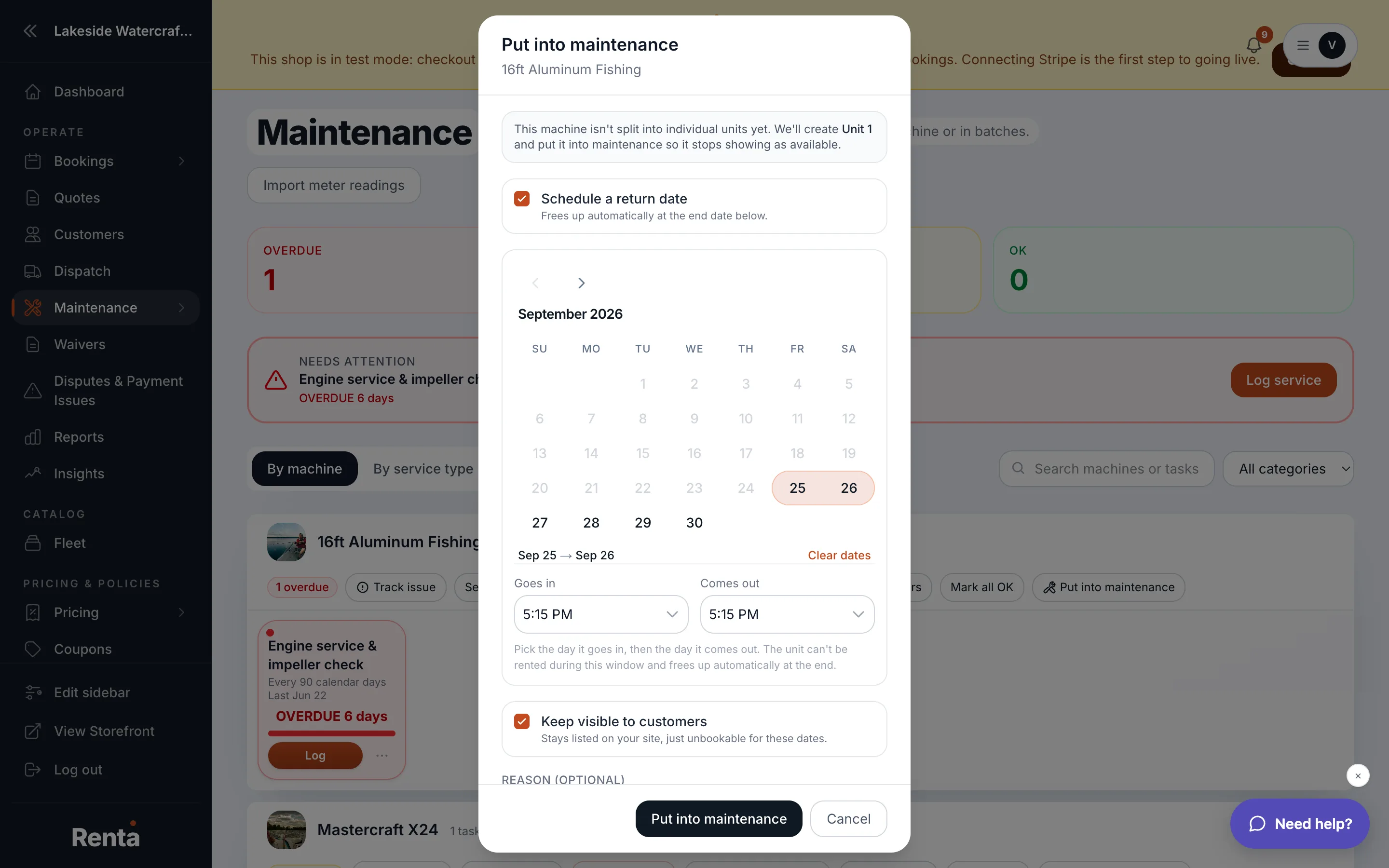 The Put into Maintenance dialog, with the storefront-visibility checkbox
How it works
- Date range (optional) — turn this on to schedule a specific window (start and end date/time). Left off, the unit goes into maintenance immediately with no end date, staying there until you change its status back yourself.
- Keep visible on storefront — checked by default, meaning customers can still see and book the item elsewhere in your fleet while this one unit is out. Uncheck it to hide the whole item from the storefront for the maintenance window.
- Reason — an optional note for your own records.
If you hide the item and set an end date, it becomes visible again on its own once that date passes. If you hide it with no end date, it stays hidden until you clear the maintenance status.
Example
If a kayak's hull needs repair and won't be ready until the 15th, open Put into Maintenance, turn on the date range through the 15th, and uncheck "Keep visible" so customers don't see it as bookable. It reappears automatically the day after.
Good to know
- This only affects new bookings on the storefront — it doesn't cancel or change any bookings already made.
- If you only have one unit and want the whole item unavailable indefinitely, leave the date range off — there is no separate end date to remember to clear.
- For a permanent removal instead of a temporary one, use Archive on the item's Review & Publish tab — see Publishing an item to your storefront.
- To log the actual repair work behind the maintenance, see Maintenance schedules on one item.
Related
Still stuck? Ask the chat.