Publishing an item to your storefront
The final review step, what blocks publishing, and how to archive or delete an item.
Where to find it
Fleet → open an item → Review & Publish tab
The Review & Publish tab is the last step before an item goes live: a summary of what you've set up, plus the switch that actually makes the item bookable on your storefront.
Where to find it
Fleet → open an item → Review & Publish tab (step 6 of 6).
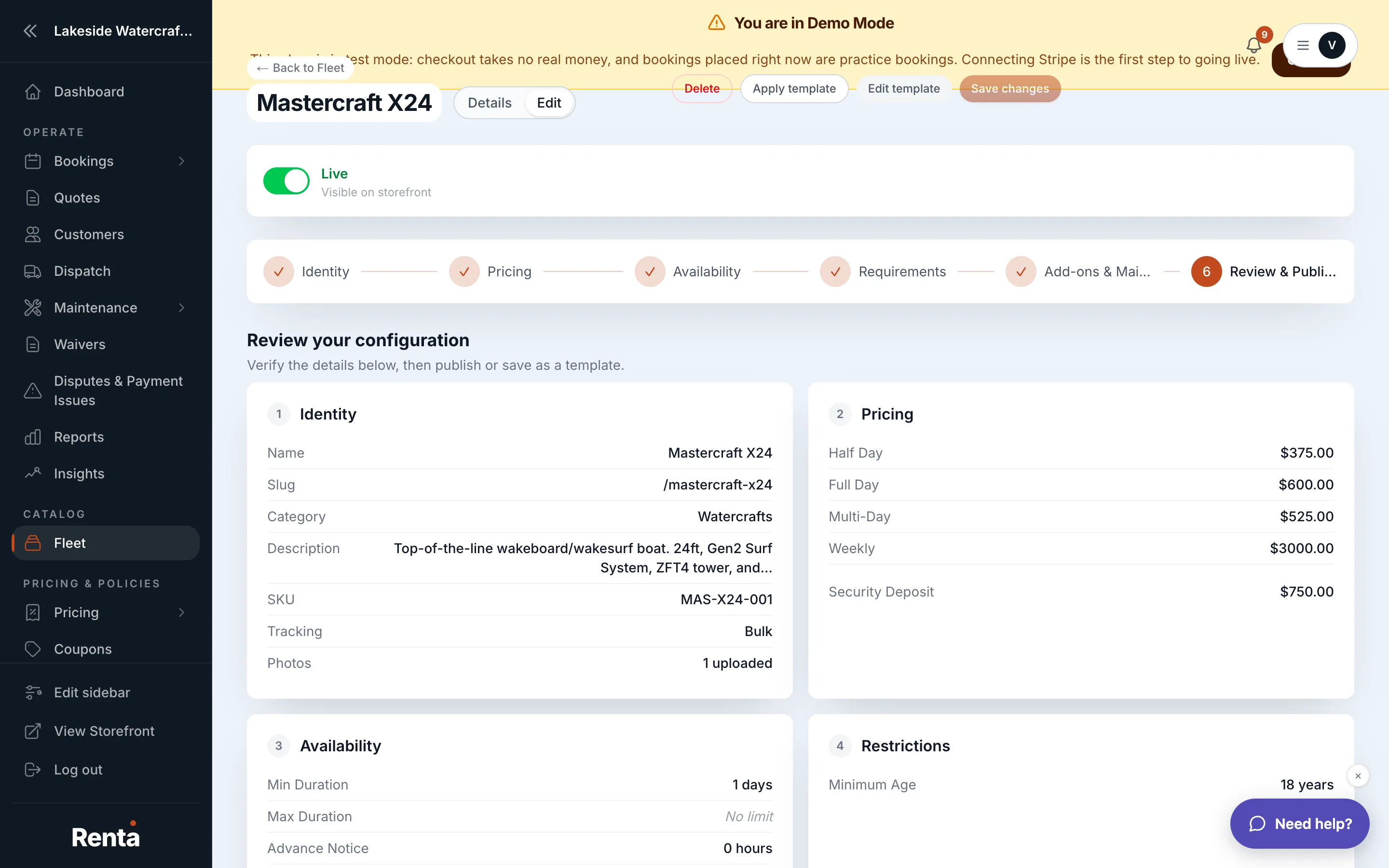 Review & Publish tab with Live/Draft toggle
How it works
- Item Name and Category — shown read-only so you can confirm them before publishing.
- Pricing Summary — shows exactly what a customer will see, including any discounts you've configured.
- Live/Draft status — the toggle that actually publishes the item. A red banner appears if your pricing is incomplete, since publishing requires both a name and completed pricing.
- Save Changes — commits your edits. It's disabled until you've actually changed something.
- Archive/Delete — hides or removes the item. If it already has bookings, you can only archive it (keeps the history, removes it from new bookings); if it's never been booked, you can delete it outright. Both ask for confirmation first.
- Save as Template — saves this item's full configuration as a reusable template, after asking you to name it.
Good to know
- An item can be fully filled out and still fail to publish if pricing is missing — check the Pricing tab if the Live toggle won't stay on. See Flat rates vs. Packages.
- If you just want an item temporarily off the storefront (not permanently gone), use Temporarily hiding an item for service instead of archiving it.
Related
Still stuck? Ask the chat.