Item variants: color, size, and other options
Track different versions of the same item, like sizes or colors, and how many of each you have.
Where to find it
Fleet → open an item → Review & Publish tab
If one fleet item actually comes in several versions — different colors, sizes, or horsepower ratings — characteristics let you track them as variants of one item instead of creating a separate item for each.
Where to find it
Fleet → open an item → Review & Publish tab.
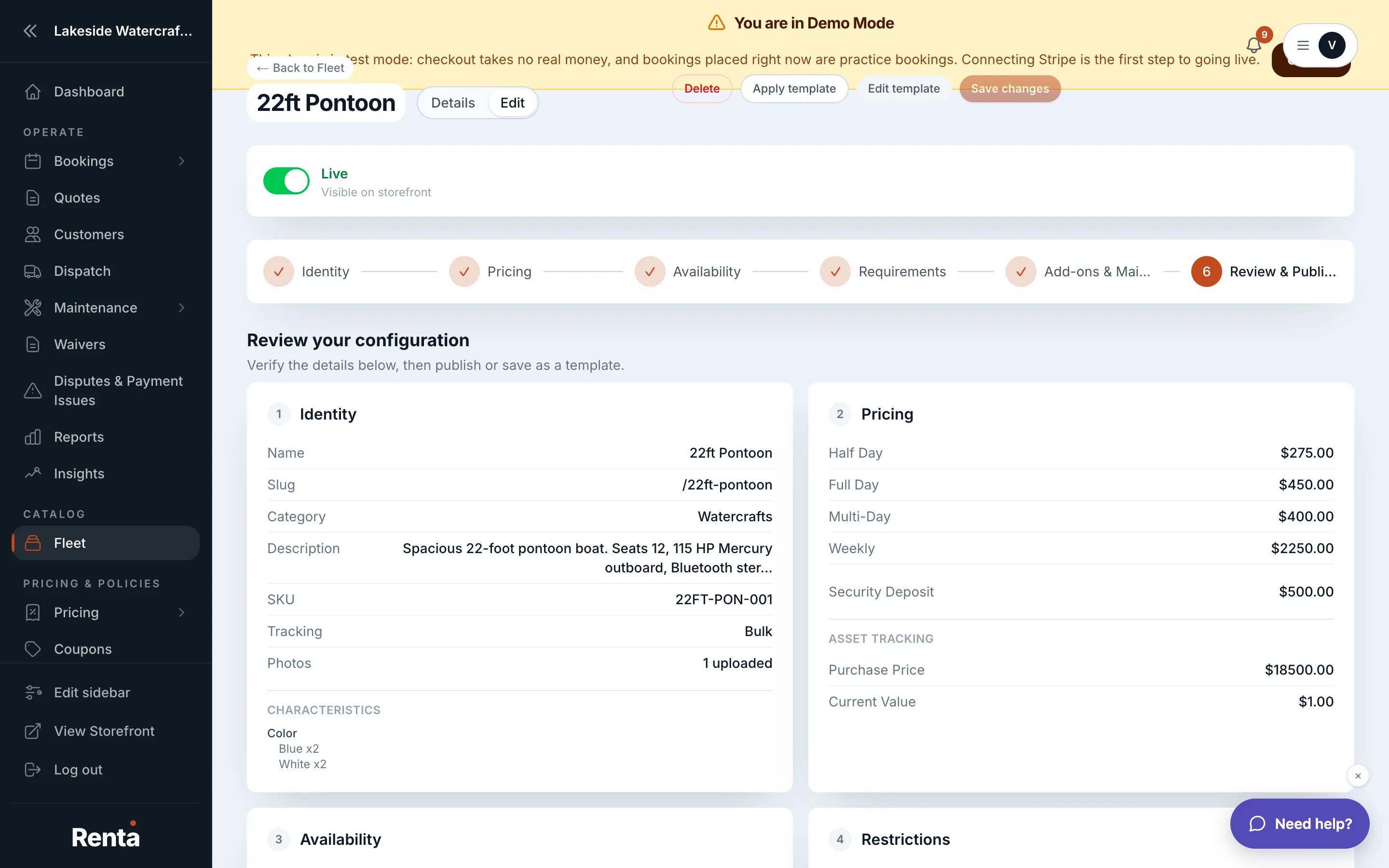 Characteristic Types and their values
How it works
- Characteristic Types — a dimension you're tracking, like "Color" or "Size." None by default.
- Type Name — the label for the dimension (e.g. "Color").
- Characteristics rows — the individual values under that type (e.g. "Red," "Blue"). At least one is required once a type exists.
- Value Name — the specific value, e.g. "Red."
- Quantity — how many units of this value you have. This is calculated automatically from any sub-characteristics below it.
- Sub-characteristics — a further breakdown under one value (e.g. Red → Small, Medium, Large), whose quantities roll up into the parent value's total.
- Tracking Mode — Individual (track each physical unit separately, with its own health and history page) or Bulk (just track a count). Defaults to Bulk.
- Inventory Count — a read-only total across all characteristics, summed automatically.
Example
A kayak item with a "Color" characteristic type might have values "Red" (quantity 3) and "Yellow" (quantity 2), for 5 kayaks total, all sharing the same price and description but distinguished by color at checkout.
Good to know
- Switching to Individual tracking mode is what unlocks per-unit pages — see Tracking one physical unit's condition and history. In Bulk mode you only see a total count, not individual unit records.
- Characteristics describe variants of a single item's listing; they're not the same as add-ons, which are separate paid extras — see Add-ons on one item.
Related
Still stuck? Ask the chat.