Maintenance templates
Build a reusable set of service tasks and inspection items once, then apply it to many machines, and understand exactly what applying does and does not change.
Where to find it
Maintenance (left sidebar) → hover → Templates
A maintenance template is a saved set of recurring service tasks (like "oil change every 25 hours") plus inspection checklist items. You build it once and apply it to as many machines as you like, instead of typing the same tasks into every machine.
Where to find it
On the Maintenance page, hover over Maintenance in the left sidebar and click Templates. If you have not set anything up, the Create a template link on the first-time card on the Maintenance page takes you there too. Owners, managers and staff can all view and edit templates.
The page is titled Maintenance templates: "Reusable sets of maintenance tasks. Templates are applied manually — edits stay on the template until you push them to each machine."
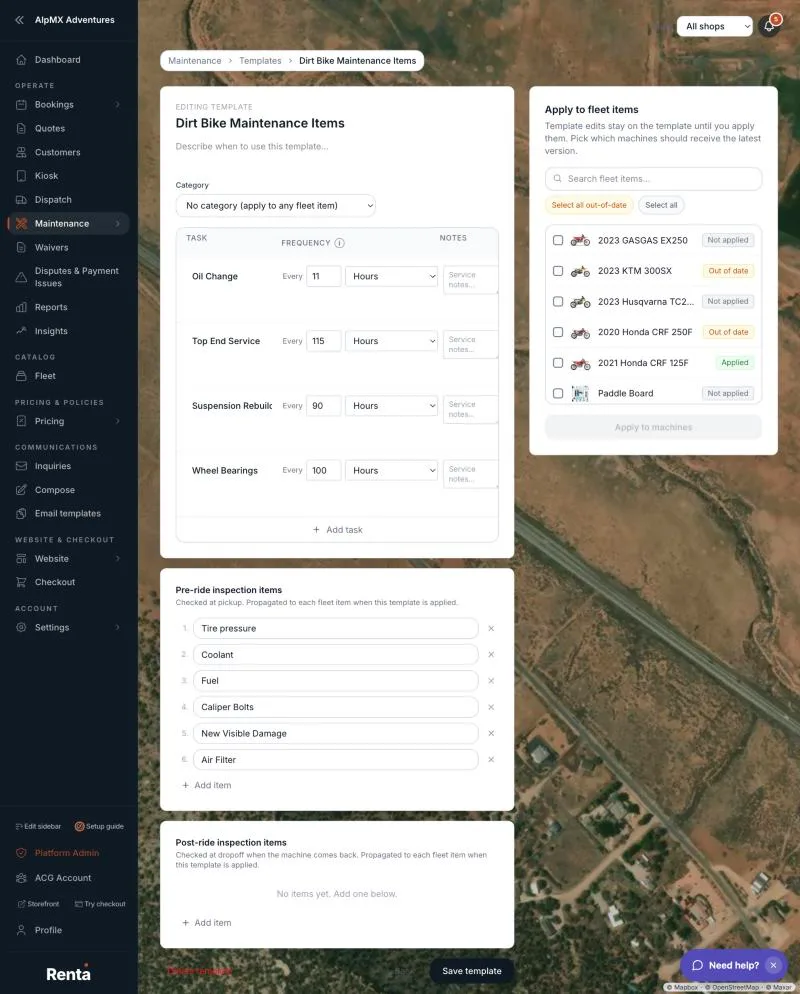 The template editor with its task table and the Apply to fleet items panel
The templates list
Templates are listed with the most recently changed first. Each card shows:
- The template name, and "N tasks · Applied to N machines · Updated (date)".
- "Category: X" if you gave it one.
- Up to four of its tasks as small tags such as "Oil change · 10h", then "+N more". The suffixes are h (hours), d (days), w (weeks), mo (months), util. days, mi (miles) and uses.
- A Clone button. It makes a copy named "(name) (Copy)" with the same description, category, inspection items and tasks. The copy is not applied to any machine.
Click a card to open it. With no templates the page says "No templates yet" and offers New template. Once you have templates, New template sits in the page header.
Make a new template
1. Click New template. 2. Enter a Name (required) and an optional Description, then click Create. 3. The editor opens so you can add tasks.
The template editor
At the top, Editing template shows the name, a description ("Describe when to use this template…") and a Category drop-down. Choosing a category limits which machines the apply list shows first. The first option, No category (apply to any fleet item), keeps it open to all. A blue Inspection-only tag shows when a template has checklist items but no service tasks.
Tasks
The table has columns Task, Frequency, Notes and Pickup · Return. Click Add task to add a row. A new row starts at every 10 hours, with Pickup ticked and Return not. For each row:
- Task — the name (for example "Oil change").
- Frequency — "Every" a whole number, then a unit: Hours, Days, Weeks, Months, Util. days, Miles or Uses. A week is 7 days and a month is 30 days. A template cannot hold a fixed calendar date.
- Notes — how to do the job. It shows on the pickup checklist and in the service log.
- Pickup — show it on the pre-rental pickup checklist.
- Return — show it on the post-rental return checklist.
- List only — a checklist item with no service schedule. It appears on the pickup and return checklists but is hidden from the Maintenance screen.
- The × button removes the row. Nothing is saved until you click Save template.
Inspection items
Two lists sit below the tasks:
- Pre-ride inspection items — checked at pickup.
- Post-ride inspection items — checked at drop-off when the machine comes back.
Click Add item for each (up to 50 per list, 200 characters each). See Requiring an inspection before a rental goes out and Post-ride (return) inspection checklist.
Saving and deleting
- Save template saves it. You will see "Template saved. Use the panel to apply changes to machines." Saving changes only the template. It never touches a machine.
- A template needs at least one task or inspection item. Otherwise you will see "Add at least one maintenance task or inspection item before saving." Every task needs a name and a whole-number interval of 1 or more.
- Back returns to the list. There is no warning if you have unsaved edits.
- Delete template asks you to confirm by name, `Delete template "(name)"?`, and says that machines using it keep their maintenance schedules, but their link to the template is removed.
Apply to fleet items
The panel next to the editor is where a template reaches your machines. Nothing reaches a machine until you click Apply.
1. Save the template first. Until it is saved the panel says "Save the template first" and the button reads Save template to apply. Unsaved edits are never applied. 2. Use Search fleet items… and the buttons Select all out-of-date and Select all (this one selects only the machines shown). If the template has a category, only that category's machines are listed. Click Show all fleet items to widen the list. 3. Each machine shows a badge:
- Not applied — it has no active task linked to this template.
- Out of date — a template task is missing on the machine, or the checklist items differ.
- Applied — it already matches.
4. Tick the machines, then click Apply to N machines. 5. A preview window, Apply to N machines?, lists what will change on each machine, such as "(task) · new task", "(task) · removed", "Pre-ride inspection · 2 items added". It also says how many machines will receive the template for the first time, or "All selected machines already match the template." 6. Click Apply changes. You will see "Applied to N machines."
What applying actually does
- First time on a machine. One task is created for every template task, with the template's interval, notes, attachments, pickup and return settings and default parts, and each starts as "Awaiting first service log". Applying the same template again never creates a second copy of the same task. The machine's pre-ride and post-ride inspection lists are replaced with the template's, so read the preview for any "items removed" lines before you confirm. You can apply to up to 100 machines at a time when machines are getting the template for the first time.
- Machines that already have it. Applying again only brings across structural changes. New template tasks are added, and checklist items are merged (new template items are added, and items on the machine that are not on the template are removed). Tasks you deleted from the template are switched off on the machine (their history is kept). It does not rewrite a task already on the machine, so a change to a task's name, interval, notes or settings on the template does not reach machines that already have it. Change those on the machine (see Logging service and adjusting tasks).
- Hand-made tasks. Tasks you added to a machine by hand are never touched. A template task called "Oil change" next to a hand-made "Oil change" gives you two.
- No automatic updates. A machine only changes when you select it and click Apply.
The Out of date badge is a structural check only. It does not turn on because a task was renamed or had its interval changed on the template.
Example
You rent six dirt bikes. Create a template called "Dirt bike service" with "Oil change · every 10 hours" and "Chain check · every 30 days", plus pre-ride items "Check tire pressure" and "Check brakes". Save it, tick all six bikes in Apply to fleet items, review the preview and click Apply changes. Each bike now has both tasks and the checklist.
Good to know
- Archived machines are not listed in the apply panel.
- If the status badges have not loaded yet, a machine may briefly read Not applied. Wait for "Refreshing status…" to finish before you apply, so a machine that already has the template is not treated as a first-time apply.
- Templates and the Maintenance screen work together. See The Maintenance screen: seeing what needs service.
Related
Still stuck? Ask the chat.