Logging service and adjusting tasks
How to record a finished service, add a recurring or one-time service, change or delete a task, log one service on many machines, defer a task, correct meters and fix mistakes in the history.
Where to find it
Maintenance (left sidebar) → a machine's card (or a unit's section)
This page covers everything you do on the Maintenance screen once you know what needs service: record the work, set up or change tasks, and keep the meters right.
Where to find it
Open Maintenance in the left sidebar. Most buttons below are on a machine's card on the By machine view. Add service is on each machine's card (and on each unit's section if the machine has several units), and batch logging is on the By service type view.
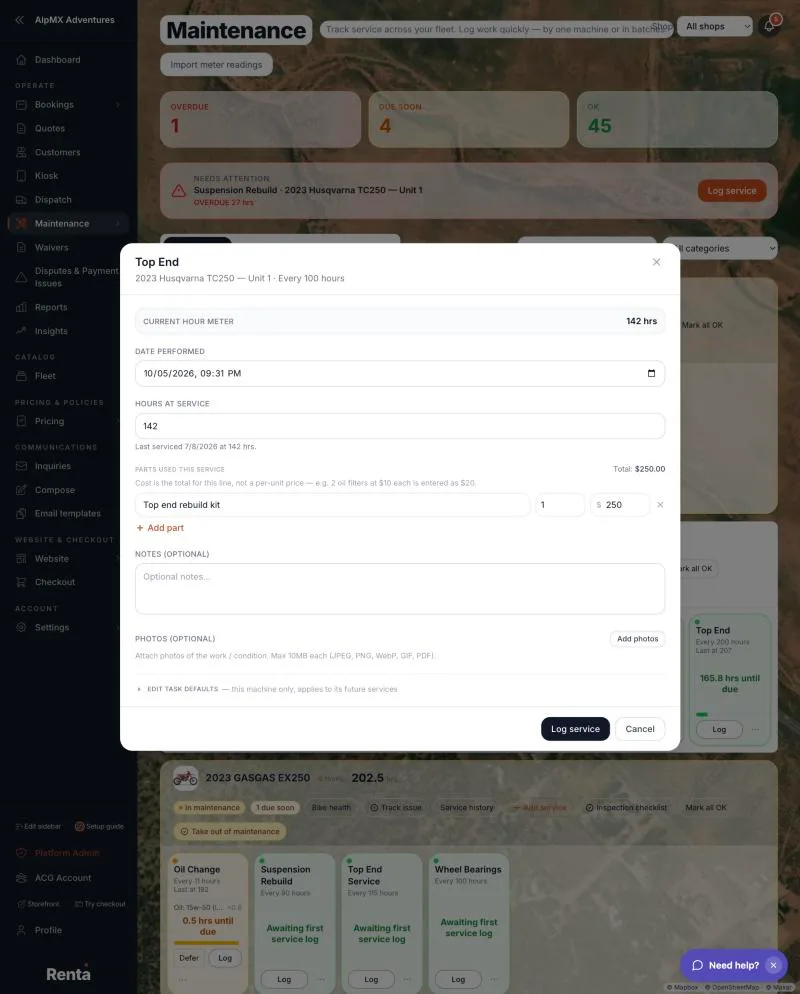 The Log service window with the date, meter reading, parts and notes fields
Log a finished service
1. Click a task's tile (or its Log button). The window is named after the task. 2. Check Date performed. It starts at the current time in your business's time zone. 3. Enter the meter reading. Hours at service or Miles at service are always shown. Util. days at service and Uses at service show only if you are allowed to change those (see "Meters" below). 4. Add Parts used this service if you like. The cost is the total of the parts, and it starts filled in from the task's default parts. 5. Add Notes (optional) and Photos (optional). 6. Click Log service. The window closes. Nothing else is required.
What happens next:
- The task's last-done date is set, and any deferral on it is cleared.
- The next due date is worked out again. For a task counted in days, weeks or months it is the date you performed it plus the interval. For a task tied to a weekday, it is the next such weekday. For a fixed date it moves forward one year if you chose to repeat yearly, and otherwise stays put. For hours, miles, uses or utilization days it is the highest reading ever logged on that task, plus the interval.
- Machine meters only ever go up when you log. If you type a reading lower than the machine's current one, a note says the machine total will not roll backwards. If it is higher, a checkbox asks whether to also update the machine's meter (uncheck it if you are back-logging an older service).
If you log a service with an earlier date than the last one on a task counted in days, weeks or months, the next due date is worked out from that earlier date, which can make the task overdue.
Add a new service
Click Add service on a machine's card, or on a unit's section if the machine has several units.
- Choose Recurring service to make a task that comes due again and again, or One-time service to record a job in the history only. A one-time service creates no countdown and moves no meter.
- Enter a Service name (required).
- For a recurring service, set the interval: a number (1 or more) and what it counts, from hours, miles, util. days, calendar days, weeks, months, uses, or On a date.
- On a date adds Due date, Repeat every year, and Alert me before it's due options (up to five reminders from 60, 30, 14, 7, 3 or 1 days before).
- Weeks adds On (optional): Any day (a rolling interval) or a chosen weekday.
- Leave Show on pickup checklist on (it is by default) to have staff see it when handing gear out. Reference images / files (optional) lets you attach photos or PDFs.
- Tick Mark as just serviced now to also log the first service straight away. Choose the unit, the Date performed, the meter reading, the parts and notes.
- Click Add service, Add & log service, or Log service (the button changes to match). A task with the same name and interval already on that machine is refused with a message saying so.
A new task starts as OK with "Awaiting first service log" until you log it.
Change or delete a task
On a task's tile, the More actions menu has:
- Edit service settings… — opens the log window with Edit task defaults expanded. Change whether it shows on the pickup checklist, the Frequency, the Notes & specs, and the Default parts, then Save task defaults. It says "Task defaults saved." Changing the frequency moves the existing next-due date by the difference. These edits apply to this machine only, and they stop a later template apply from overwriting the task's parts, notes or pickup setting.
- Apply to other machines… — copies this task to machines you tick (search, filter by category, Select all shown, then Apply to N machines). It copies the interval, notes, attachments, pickup and return settings and default parts. It skips machines that already have an active task with that name. It does not copy the due date, yearly repeat, alert days or weekday, so the copies start as "Awaiting first service log". A message says how many were applied and how many were skipped.
- Delete task — "Permanently delete" the task from the machine. The past history is kept, but the task stops being tracked. This cannot be undone. Note that it removes the task for every unit of that machine.
Defer a task
Use Defer when a task is overdue or due soon but you cannot do it yet (for example, waiting on a part). It appears on tiles of tasks measured by a meter, only when they are due soon or overdue.
1. Click Defer. 2. Keep OK until is filled in with the current reading plus half an interval. Change it to the reading you want. 3. Enter a Reason (required, for example "waiting on part"). 4. Click Defer.
Until the meter passes the number you chose, the task reads OK with "Deferred: reason". After that it goes back to its real status. Deferring does not change the due date and the unit stays bookable. A new log, or Mark all OK, clears a deferral. Tasks counted in calendar time cannot be deferred.
Log the same service on many machines
On the By service type view: 1. Pick the Service type. The heading changes to "Batch log:" and the task name. Overdue and due-soon units are ticked for you. 2. Tick the units and enter each one's meter reading. 3. Under Apply to all selected, add Cost ea. ($), Performed by and notes if you want. 4. Click Log on N machines.
This logs the service with today's date on every ticked unit, up to 100 at a time, and resets each task. After it finishes, the rows stay ticked, so do not click the button a second time or the service will be logged twice.
Update meter counters
Click Update counters on a machine or unit to type in the current Hours and Miles (and Util. days and Uses if you are allowed). At least one reading is required. Saving sets the meter directly. Unlike logging a service, it can go down, it records no service, and it does not reset any due date. You can also bulk-update from a spreadsheet: Importing meter readings from a spreadsheet.
Mark all OK
Mark all OK records a free inspection for every task on a unit and resets their due dates, without changing any booking. It asks "Mark all OK?" first. If the unit tracks hours or miles but has no reading yet, you are asked to enter the meter readings first ("Meter readings required", with an Open counters button). On a machine with several units, choose a unit first, or use the buttons in that unit's own section.
Fix a mistake in the history
On Recent history, click an entry to open Edit log entry. You can change the Date performed, the meter reading, the Cost ($), the notes and the photos, or press Delete ("Delete log entry?", which cannot be undone). After an edit or delete, Renta works out the task's schedule again from the newest log that is left. Meters are not rolled back. If you delete every log, the task goes back to "never serviced".
Meters
Hours and Miles are readings you enter. Util. days and Uses count up by themselves. Owners can always type over them. Managers and staff can too, unless an owner has switched that off with Allow autotracked counter overrides (Settings → Team → Override permissions, see Fine-tuning what Managers and Staff can do). Without permission, the Util. days and Uses boxes are hidden and a message asks you to get an owner to allow it.
Example
A jet ski's 100-hour service is due. You open Maintenance, click the tile, type the hour-meter reading, add the oil filter as a part, and click Log service. The next due reading becomes the reading you logged plus 100 hours, and the tile goes back to OK.
Good to know
- Logging, editing and deleting never change bookings or availability. To take a unit out of service, see Temporarily hiding an item for service.
- Recurring tasks are usually created from a template and applied to many machines at once. See Maintenance templates.
Related
Still stuck? Ask the chat.