What the kiosk is: Staffed or Autonomous
The kiosk turns a tablet into a customer check-in screen for reserving, picking up and returning gear. Two presets, Staffed and Autonomous, set who does what, and every setting stays editable.
Where to find it
Kiosk (sidebar)
The kiosk turns a tablet at your counter into a customer check-in screen. Customers can book gear on the spot, pick up a reservation, or return gear without a staff member running the screen. A tablet that is locked into kiosk mode (a "locked device") shows only this screen, so customers cannot get into your dashboard. Some people call it the check-in kiosk.
Where to find it
Kiosk in the left sidebar. This is where you choose what customers can do, set the staff PIN (the kiosk password), lock a tablet, and preview the kiosk before customers use it.
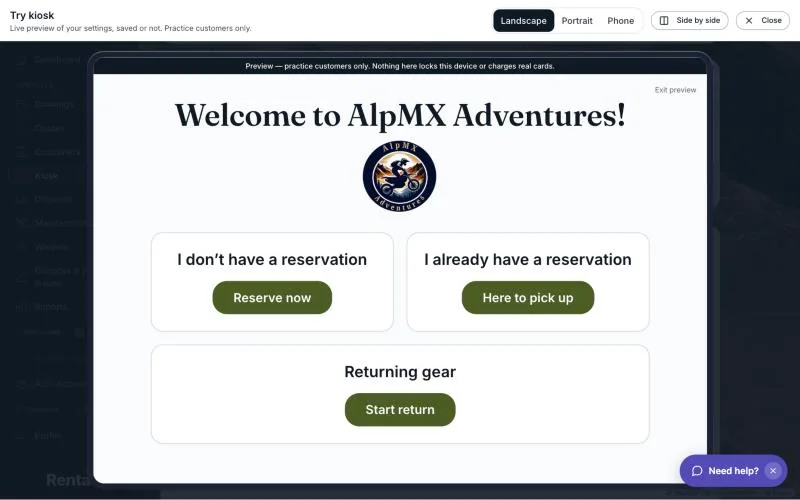 The kiosk home screen with the three buttons
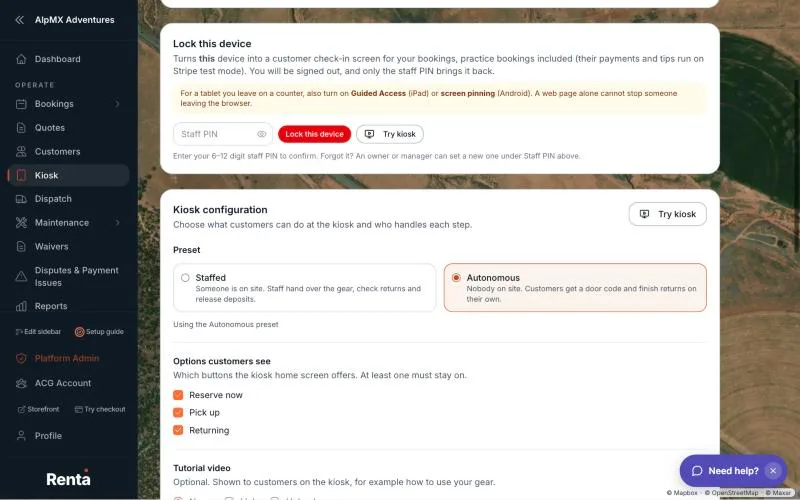 The Preset choice at the top of the Kiosk configuration card
What customers see
The home screen reads Welcome to and your business name, shows your logo, and offers up to three big buttons:
- Reserve now, under "I don't have a reservation". A walk-in books gear on the spot. See Reserve now: booking a walk-in at the kiosk.
- Here to pick up, under "I already have a reservation". See Pick up at the kiosk.
- Start return, under "Returning gear". See Returning gear at the kiosk.
If you added a tutorial video, a Watch how it works button sits under your logo. You choose which of the three buttons show, and at least one must stay on. Reserve now also needs your business to have an online storefront, because it uses your normal online checkout.
Staffed or Autonomous
A preset is a ready-made set of choices to start from.
- Staffed: "Someone is on site. Staff hand over the gear, check returns and release deposits." At pick-up, the customer finishes their steps and a team member is notified to bring the gear out. Returned gear goes to staff to check.
- Autonomous: "Nobody on site. Customers get a door code and finish returns on their own." At pick-up, the kiosk checks the customer out itself, the booking becomes Active, and the customer sees a door code if you use igloohome smart locks. At return, the kiosk can finish the rental and release the deposit itself when nothing is wrong.
The two presets differ in just two settings: Gear hand-off and When the return finishes. Everything else starts the same for both: all three buttons on, every pick-up step required, every return step on, and tip buttons of 10%, 15% and 20%.
Every setting stays editable. Picking a preset fills the settings in, and you can change any of them afterward. When you do, the line under Preset changes from "Using the Staffed preset" to "Custom (based on Staffed)". A preset never changes your tutorial video.
Autonomous still calls a person when something is off
Autonomous does not mean the kiosk finishes everything no matter what. At pick-up, a missing deposit hold, or a balance owed when no payment link has been sent, sends the customer to staff. If a payment link has been sent, they pay at the kiosk. At return, damage, money owed and several other cases send the return to staff to review. See Pick up at the kiosk and When automatic finish hands a return to staff.
If you have not saved any settings
A business that has never saved kiosk settings runs as Staffed with everything on. If the kiosk cannot read a setting, it also falls back to the Staffed behavior instead of guessing.
Good to know
- To lock a tablet into kiosk mode you need a staff PIN. See Setting or changing your kiosk password (staff PIN).
- A locked kiosk works with your practice customers' bookings too, so you can walk through every step without real money. See Testing the kiosk with practice customers.
- To see the kiosk without locking anything, use Try kiosk. See Try kiosk: preview your kiosk before customers use it.
Related
Still stuck? Ask the chat.