Try kiosk: preview your kiosk before customers use it
Try kiosk shows the real kiosk screens on your own computer, side by side with your settings, using practice customers only. It never locks your device or charges real cards, and Reserve now is switched off in it.
Where to find it
Kiosk (sidebar) → Try kiosk
Try kiosk opens the real kiosk screens on your own computer, running on the settings you have on screen right now, saved or not. Nothing gets locked, nobody is signed out, and only your practice customers' bookings can be used.
Where to find it
Kiosk in the left sidebar. There is a Try kiosk button at the top right of the Kiosk configuration card, and another next to Lock this device.
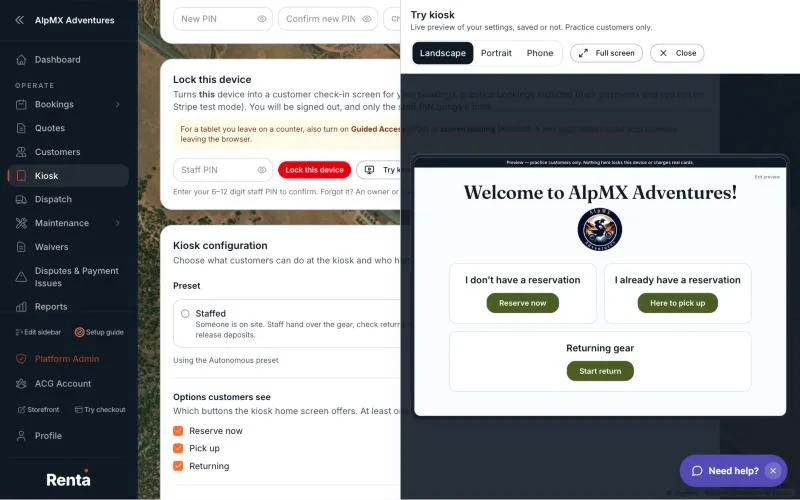 Try kiosk docked side by side with the Kiosk configuration card
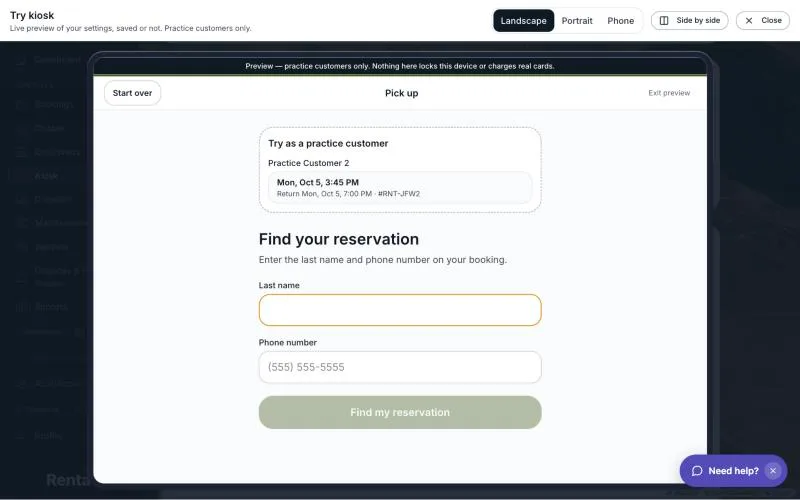 The Try as a practice customer list on the preview's Pick up screen
How it works
- A window titled Try kiosk opens over the page, with the note "Live preview of your settings, saved or not. Practice customers only." A banner inside the preview reads "Preview — practice customers only. Nothing here locks this device or charges real cards."
- Device size switches the frame between Landscape, Portrait and Phone.
- Side by side moves the preview to the right half of your window and keeps your settings usable on the left, so you can change a tick box and watch the kiosk change at once. Full screen puts it back. Close, or the Esc key, closes the preview.
- On the preview's screens, the small Staff button reads Exit preview and closes the preview instead of asking for a PIN.
- Reserve now is shown so the layout is true, but pressing it opens a note: "Reserve now uses your real checkout, so it's disabled in preview." Press OK. Reserve now would run your real checkout, which is why it is off here.
- On Pick up and Return, a box called Try as a practice customer lists your practice customers' bookings that this screen could serve right now. Tap one to go straight in. The last name and phone form below it also works, for practice customers only.
- If you have none, the box says "Create a practice booking for today first." On the Return screen it adds "Then check it out so it's ready to return." The New booking link closes the preview and opens the new-booking form.
- The idle reset (the kiosk starting over when nobody touches it) waits 10 minutes in the preview, instead of 90 seconds on a real tablet.
What is real and what is not
- Payments and tips on a practice booking run in Stripe's test mode (Stripe is the company that processes card payments), so no real money moves. See Testing the kiosk with practice customers.
- A practice booking never gets a real door code, so a self-serve pick-up in the preview ends at "Your gear is ready — see the counter."
- Staff notifications from the preview start with "Practice:" so they never look like a real customer at the counter.
- The preview does change the practice booking itself. A self-serve pick-up can mark it Active, and an automatic return can finish it. You can delete practice bookings later with Clear practice bookings on the Bookings page.
Good to know
- You need to be signed in with access to the Kiosk page. A preview never reaches a real customer's booking.
- Edits you have not saved show in the preview, but nothing is saved until you press Save kiosk settings. See Kiosk settings: what customers see and do.
- Try kiosk does not test your door lock or a locked tablet's Guided Access setup. For those, lock a real tablet. See Setting or changing your kiosk password (staff PIN).
Related
Still stuck? Ask the chat.