Kiosk settings: what customers see and do
The Kiosk configuration card sets the kiosk's buttons, tutorial video, required pick-up steps, hand-off style, return steps, tip buttons and finish style. Press Save kiosk settings to apply them.
Where to find it
Kiosk (sidebar) → Kiosk configuration
The Kiosk configuration card decides what customers can do at the kiosk and who handles each step. Change it, press Save kiosk settings, and your locked tablets follow it.
Where to find it
Kiosk in the left sidebar, then the Kiosk configuration card. It sits below Staff PIN and Lock this device.
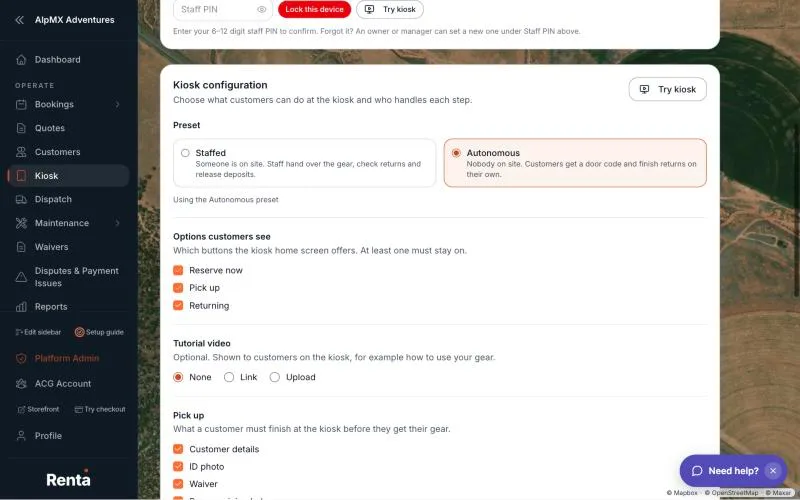 The Kiosk configuration card with Options customers see, Tutorial video, Pick up and Return
Who can change it
Anyone who can open the Kiosk page can change and save these settings. The page needs permission to change settings, which owners, managers and staff have by default. Only owners and managers can set the staff PIN. See Setting or changing your kiosk password (staff PIN).
The settings, top to bottom
Preset. Staffed or Autonomous, a starting point that fills in the settings below. See What the kiosk is: Staffed or Autonomous.
Options customers see. Which buttons the kiosk home screen offers: Reserve now, Pick up and Returning. At least one must stay on, so the last tick box left on cannot be unticked.
Tutorial video. Optional. Choose None, Link or Upload. Customers see a Watch how it works button on the home screen, and it opens a window called How it works with a Close button.
- Link: paste an https link from YouTube or Vimeo (youtube.com, youtu.be or vimeo.com). Any other site is refused with "Use an https link from YouTube or Vimeo (youtube.com, youtu.be or vimeo.com)."
- Upload: choose an MP4, WebM or MOV file up to 100 MB, and keep the page open while it uploads. Remove video takes it off, and the removal applies when you save.
Pick up. "What a customer must finish at the kiosk before they get their gear." Five tick boxes: Customer details, ID photo, Waiver, Pay remaining balance and Deposit hold. Then Gear hand-off:
- Staff hands over gear (alert staff)
- Self-serve (customer gets door code / grabs gear; booking marked Active automatically)
How each step behaves is in Pick up at the kiosk.
Return. "What a customer is asked to do when they bring the gear back." Five tick boxes: Condition photos, Return checklist, Report damage, Review request and Tip.
- With Tip ticked, a Tip buttons area appears with one box per button, set to 10, 15 and 20 percent to start. Use whole numbers from 1 to 100, all different, or the card shows "Use different whole numbers from 1 to 100 for every tip option." Customers always also get Custom amount and No tip. See Tips at the kiosk.
- When the return finishes: Staff reviews and releases deposit, or Finish automatically when no damage is reported (deposit released automatically). See Returning gear at the kiosk.
Saving
Save kiosk settings is greyed out until you change something, and while any box has a problem. The card then says "Fix the highlighted fields to save." After a save it shows Saved. Nothing changes on your tablets until you save. To watch an edit take effect first, use Try kiosk, which shows your unsaved edits.
Good to know
- Unticking a pick-up step means the kiosk neither asks for it nor checks it. Unticking all five sends customers straight to the hand-off.
- Each pick-up step only appears for a booking that is still missing it. A customer whose waiver is already signed is not asked to sign again.
- Unticking Return checklist or Tip removes that step from the return. If you untick Return checklist while your equipment has return checklist items, automatic finish cannot complete a return, and it goes to staff. See When automatic finish hands a return to staff.
- A tablet that is already sitting on its home screen may need a refresh to show settings you just saved.
Related
Still stuck? Ask the chat.