Setting or changing your kiosk password (staff PIN)
Set or change the check-in kiosk password (also called the kiosk passcode or staff PIN) at Kiosk → Staff PIN. Only owners and managers can, and you do not need the old PIN. Also covers locking and unlocking a tablet.
Where to find it
Kiosk (sidebar) → Staff PIN
To set or change your check-in kiosk password, open Kiosk in the left sidebar and use the Staff PIN card at the top. The kiosk password is called the staff PIN (a code of 6 to 12 digits). Only owners and managers can set or change it, and you do not need the old PIN to change it.
The staff PIN is what staff type to lock a tablet into kiosk mode and to unlock it again. It never signs anyone into your dashboard.
Where to find it
Kiosk (left sidebar) → Staff PIN, the first card on the page. The label next to the heading reads No PIN yet or PIN is set. Team members who are not owners or managers see only that label, with the note "Only an owner or manager can set or change it."
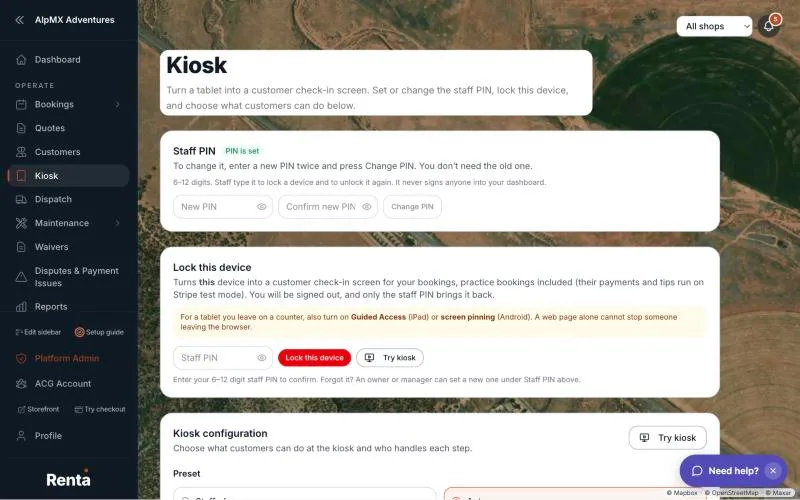 The Staff PIN card and the Lock this device card at the top of the Kiosk page
Setting the PIN for the first time
1. In New PIN, type 6 to 12 digits. Only digits are accepted, and the eye icon shows or hides what you typed. 2. In Confirm PIN, type the same digits again. 3. Press Save PIN. It stays greyed out until you have typed at least 6 digits. If the two boxes differ, you see "The two PINs don’t match".
The page confirms with "PIN saved."
Changing the PIN
1. In New PIN, type the new PIN. 2. In Confirm new PIN, type it again. 3. Press Change PIN.
You do not need the old PIN, and any owner or manager can do this at any time. The page confirms with "PIN changed." The new PIN works right away, including on tablets that are already locked.
Locking a tablet into kiosk mode
1. On the tablet, open Kiosk and find the Lock this device card. It locks the device you are using, not another one. 2. Type your staff PIN in the Staff PIN box. 3. Press Lock this device.
You are signed out at once, and the tablet shows only the customer check-in screen. If you try to open your dashboard or the sign-in page on a locked tablet, it sends you back to the kiosk. Anyone who can open the Kiosk page and knows the PIN can lock a tablet.
If something is missing, the card tells you: "Set a staff PIN above before locking this device." (or "Ask an owner or manager to set a staff PIN before locking this device." if you are not an owner or manager), "Enter your full staff PIN — it is 6–12 digits.", or "Incorrect PIN".
A tablet stays locked for 30 days. After that it shows the sign-in page, and you lock it again. The lock is kept in that tablet's browser.
Turn on Guided Access or screen pinning too
A web page alone cannot stop someone from leaving the browser. For a tablet you leave on a counter, also turn on Guided Access (iPad) or screen pinning (Android) in the tablet's own settings.
Unlocking a tablet (exiting kiosk mode)
1. Tap Staff, the small button at the top right of any kiosk screen. 2. In the Staff exit window, type the staff PIN. 3. Press Unlock device. It stays greyed out until you have typed at least 6 digits.
The tablet goes to the sign-in page. Sign in as usual to get back to your dashboard, because unlocking does not sign anyone in.
A wrong PIN shows "Incorrect PIN". After 10 attempts within 5 minutes, counted across all of your business's kiosks together, the kiosk shows "Too many requests. Please try again later." Wait a few minutes and try again.
Forgot the PIN?
There is no way to look up a PIN, only to set a new one. 1. Sign in on a different device, such as a phone or laptop. You must be an owner or manager. 2. Go to Kiosk → Staff PIN and set a new PIN. 3. Go back to the locked tablet, tap Staff, and enter the new PIN.
Make sure at least one owner or manager always knows the current PIN.
Keeping it secure
- Keep the PIN with your owners and managers. Do not tape it to the tablet.
- Use Guided Access or screen pinning as well, as above.
- Set a new PIN when staff change or when many people have used the tablet.
Good to know
- A locked tablet finds all of your bookings, including your practice customers' bookings, so you can try the whole check-in yourself. See Testing the kiosk with practice customers.
- For the other kiosk settings, see Kiosk settings: what customers see and do. To hand a tablet to one customer for one booking without locking it, see Choosing what customers fill out on a shared device (Customer View).
Related
Still stuck? Ask the chat.