Handing a customer a limited view of your dashboard (Customer View)
Choose which steps a customer fills out on a shared device, and lock that device with a staff PIN so they can't see anything else.
Where to find it
Settings → Customer View
Customer View lets you hand a customer a tablet or shared device that only shows the steps you choose — their details, ID photo, waiver, equipment choice, or payment — without exposing the rest of your admin dashboard. A staff PIN locks the device so a customer can't wander into anything else.
Where to find it
Settings → Customer View.
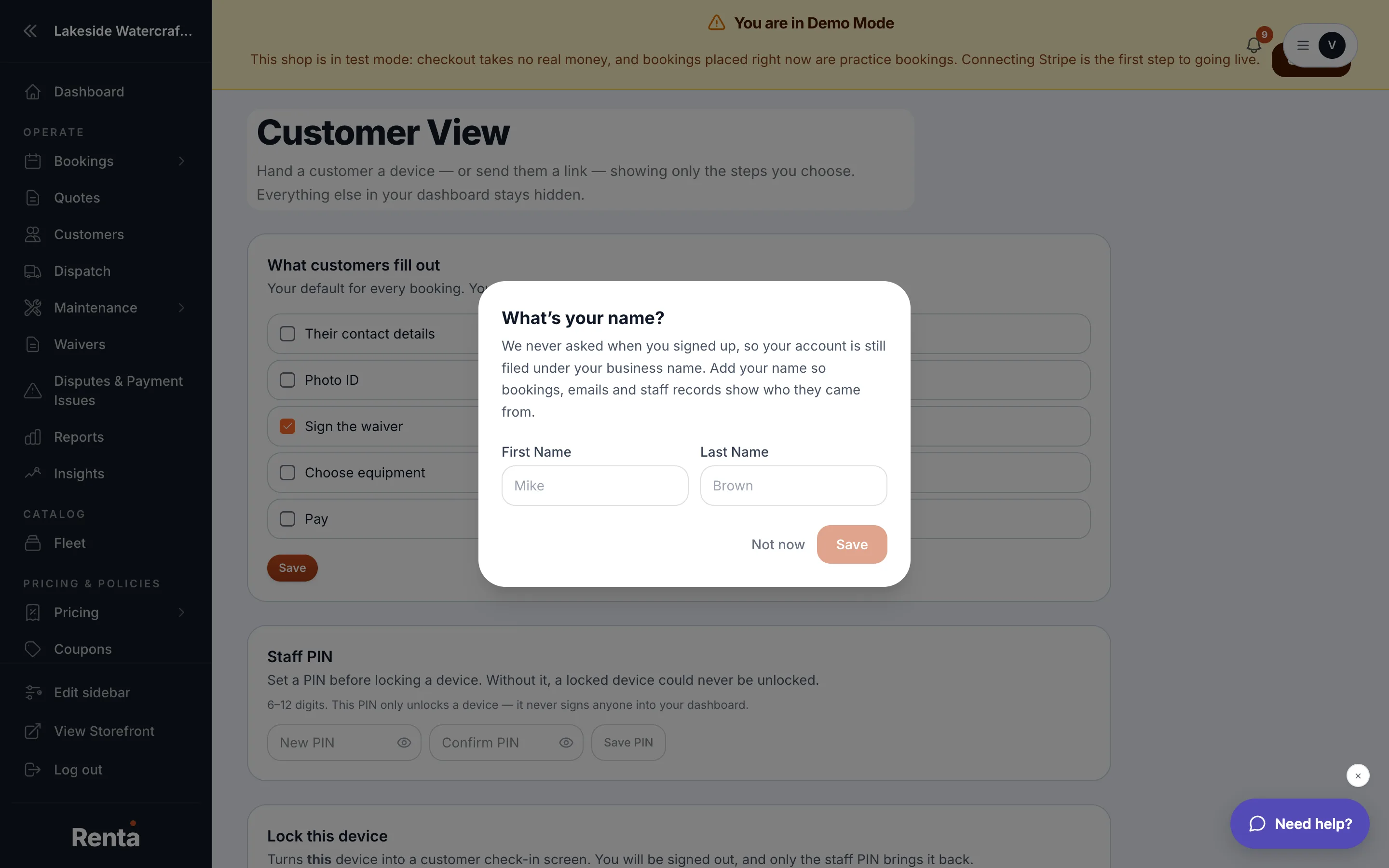 The Customer View settings page with step toggles and the staff PIN section
How it works
- What customers fill out: choose which steps appear by default whenever you hand a device to a customer — their contact details, photo ID, waiver signature, equipment choice, and payment. You can still change this for one specific booking from that booking's own page.
- Staff PIN: a 6–12 digit code you set once. Entering a new PIN replaces the old one.
- Locking a device: after setting a PIN, you can lock the current device into customer view. Doing this signs you out of the admin, and only the staff PIN brings it back.
Example
A jet ski rental shop could hand a customer a tablet at check-in with only "Their contact details," "Sign the waiver," and "Pay" turned on, so the customer completes those steps themselves without seeing bookings for other customers.
Good to know
- You must set a staff PIN before you can lock a device — without one, a locked device could never be unlocked again.
- Locking a device signs the current staff member out immediately; make sure the right steps are turned on before you lock it.
Related
Still stuck? Ask the chat.