Adding your own tracking code or scripts (Custom Scripts)
Paste in your own tracking pixels or scripts to run on your storefront or admin dashboard.
Where to find it
Settings → Custom Scripts
If you need to run your own tracking code — an ad pixel, a chat widget, a site-verification tag — that Renta doesn't already have a built-in setting for, you can paste it in here.
Where to find it
Settings → Custom Scripts.
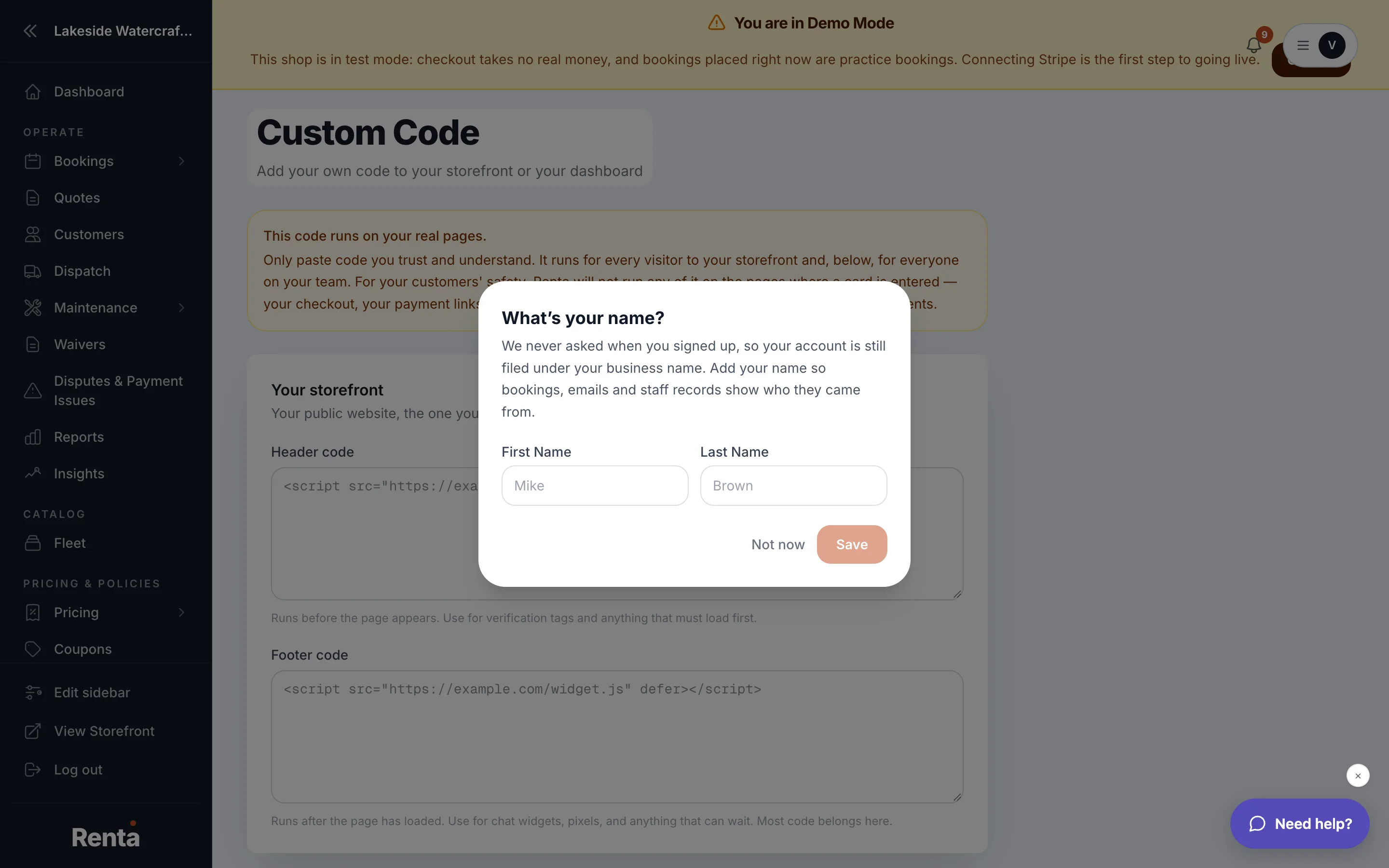 The Custom Scripts page with storefront header and footer code fields
How it works
- Your storefront: code for your public website, split into Header code (runs before the page appears — use for verification tags or anything that must load first) and Footer code (runs after the page loads — use for chat widgets, pixels, and most other code).
- Your dashboard: the same two fields, but for your admin dashboard instead of your public site. Only your team sees this.
- Leave a field blank to remove that code.
Example
If a marketing tool gives you a snippet of JavaScript to paste for ad tracking, you'd paste it into the storefront's Footer code field, since most tracking code is meant to load after the page.
Good to know
- Renta will not run any of this code on pages where a customer enters a card — checkout, payment links, and the booking and customer pages where staff take payments — to protect your customers.
- Only paste code you trust and understand: it runs on every visitor to your storefront, and the dashboard code runs for everyone on your team.
- For Google Analytics or Google Tag Manager specifically, use Installing Google Analytics or Tag Manager instead — it's a dedicated, simpler setting.
Related
Still stuck? Ask the chat.