Pick up at the kiosk
How a customer picks up a reservation at the kiosk, which steps you can require, why a missing deposit hold sends them to staff, staff hand-off versus self-serve, and the Before you ride checklist.
Where to find it
At the kiosk home screen → Here to pick up. Settings at Kiosk → Kiosk configuration → Pick up
At Pick up, a customer finds their booking, finishes only the steps your business requires and that booking is still missing, and then either a team member brings the gear out or, on a self-serve kiosk, the kiosk checks them out and shows a door code.
Where to find it
- For customers: the kiosk home screen → Here to pick up. First they find their booking, see How customers find their booking at the kiosk.
- For you: Kiosk → Kiosk configuration → Pick up.
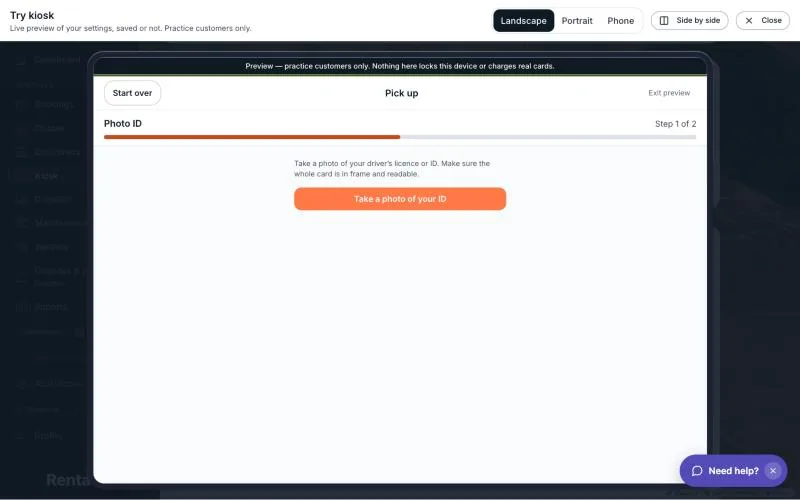 A pick-up step with its step-count progress bar
The steps you can require
Tick the ones your business wants. The kiosk shows a customer only the ticked steps that their booking has not already finished, one at a time, with a "Step 2 of 3" bar. The name customers see at the top of each step is in quotation marks.
- Customer details ("Your details"): full name, email, phone and address boxes. It only appears if the booking is missing a name, an email or a phone number.
- ID photo ("Photo ID"): the customer takes a photo of their driver's licence or ID. It is skipped if the booking already has one.
- Waiver ("Sign waiver"): the customer signs your waiver on the kiosk. It is skipped if everything that applies to their gear is already signed, or if no waiver applies. See Waiver templates.
- Pay remaining balance ("Payment"): shows your payment page if the customer still owes money. It is skipped when nothing is owed.
- Deposit hold ("Security deposit"): the kiosk checks that the deposit is in place. The customer cannot do anything about it here. See the next section.
Unticking a step means the kiosk neither asks for it nor checks it. If you untick all five, customers go straight to the hand-off.
The deposit-hold rule
The kiosk cannot place a deposit hold. Holds are placed at checkout, on a schedule, or by staff. With Deposit hold ticked, the kiosk only checks that the hold is in place:
- If the booking has no deposit, the step is done.
- If there is a deposit, every part of it must be on the customer's card or collected. A hold scheduled for later, a failed hold, or no hold at all does not count.
- If it is not in place, the customer is not blocked with an error. The kiosk sends them to staff: "Almost there! A team member will be right over to finish your pick-up."
Self-serve shops follow the same rule. The kiosk will not check someone out on its own while a ticked deposit is missing. See Releasing vs. capturing a deposit hold.
When a step needs staff
Two other things the customer cannot fix at the kiosk also send them to staff: a balance owed when no payment link has been sent (see Sending a customer a payment link), and a waiver the kiosk could not set up.
Staff hand-off or self-serve
You choose under Gear hand-off.
Staff hands over gear (alert staff). When the customer has finished, a team member gets a notification, in the bell, titled "[Customer name] is ready for pickup". It lists the gear and, if something was left for staff, "Needs staff:" with what. The customer sees "You're all set, [name]! A team member will bring your gear out." The booking stays as it was, so staff hand over the gear and start the rental as usual. See Starting a rental: the pickup checkout and the payment check.
Self-serve. The kiosk checks the customer out itself. The booking becomes Active, and the booking's change log notes "Picked up at the self-service kiosk — no staff member present". The customer then taps Unlock your gear to see their door code. See Door codes at the kiosk. Self-serve only works for a Confirmed booking. A booking that is not Confirmed yet, such as Pending payment, or a check-out the system refuses, alerts staff instead.
If staff cannot be reached, the customer sees "We couldn't reach the team — please see the counter".
Before you ride
On a self-serve pick-up, after the other steps, the customer sees Before you ride, with "Check each item and tick it off." It lists your pre-ride inspection items for each machine on the booking, and Continue stays greyed out until every box is ticked. This list only appears for machines set to require an inspection. See Requiring an inspection before a rental goes out. Their ticks are saved on the booking's pickup record with a note that the customer checked them at the kiosk.
Good to know
- The final screen has a Done button and returns to the home screen by itself after 60 seconds, so the next customer does not see this one's door code.
- Staff alerts about a practice booking start with "Practice:".
- Almost there! means a person is needed. You're all set! means nothing else is needed from the customer.
Related
Still stuck? Ask the chat.