A customer's full profile
Contact info, lifetime spend, booking count, and internal tags and notes, all on one page.
Where to find it
Customers → open a customer
Opening a customer from the list shows their full record: contact details, how much they've spent, and internal notes your staff can see (but the customer never does).
Where to find it
Customers → click a customer's name
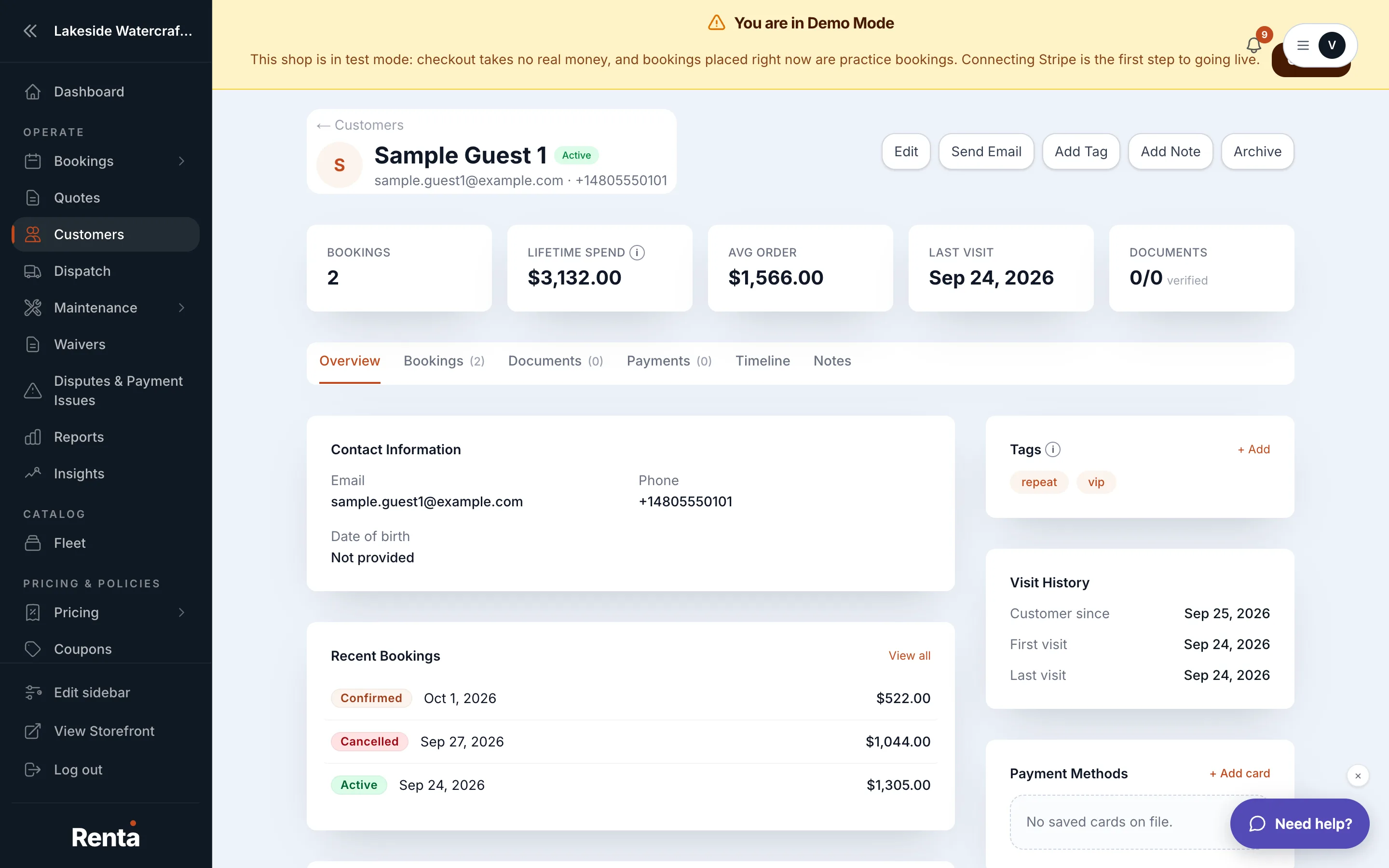 The Overview tab of a customer's profile
How it works
The profile has six tabs: Overview, Bookings, Documents, Payments, Timeline, and Notes.
On the Overview tab:
- Status badge — Active, Archived, or Banned.
- Name, Email, Phone — editable contact fields.
- Address — the pickup or delivery address, with autocomplete.
- Billing Address — kept separate from the rental address.
- Date of Birth — set with a month/day/year picker.
- Bookings — count of this customer's confirmed, active, and completed bookings (cancelled ones aren't counted).
- Lifetime Spend — total actually paid on those bookings, minus any refunds, not counting security deposit holds.
- Avg Order — lifetime spend divided across those bookings.
- Last visit — the most recent past pickup date, or "N/A" if there isn't one yet.
- Tags — labels you create, like "VIP," shown only to staff.
- Notes — a general internal note field on this tab (separate from the dedicated Notes tab, described in Internal notes and photos on a customer).
Click Edit to change any of the contact fields, then save.
Example
A jet ski shop owner opens a customer who has completed five bookings and spent $2,400 total. The Overview tab shows Bookings: 5, Lifetime Spend: $2,400, and an Avg Order of $480 — all calculated for you, nothing to enter.
Good to know
- The other tabs cover: Storing a customer's ID and documents, Saved cards on a customer's account, and Internal notes and photos on a customer.
- Archiving, unarchiving, and deleting a customer are covered in Archiving or deleting a customer record.
- The driver's license number lives in its own section below the tabs — see Viewing a customer's driver's license number.
Related
Still stuck? Ask the chat.