Saved cards on a customer's account
Cards a customer added through Stripe Link, and which one is set as their default for future bookings.
Where to find it
Customers → open a customer → Payments tab
The Payments tab shows any cards a customer has saved for faster checkout next time. Cards are only added through Stripe Link — there's no way to type a card number in for them manually, which keeps you out of handling raw card numbers.
Where to find it
Customers → open a customer → Payments tab
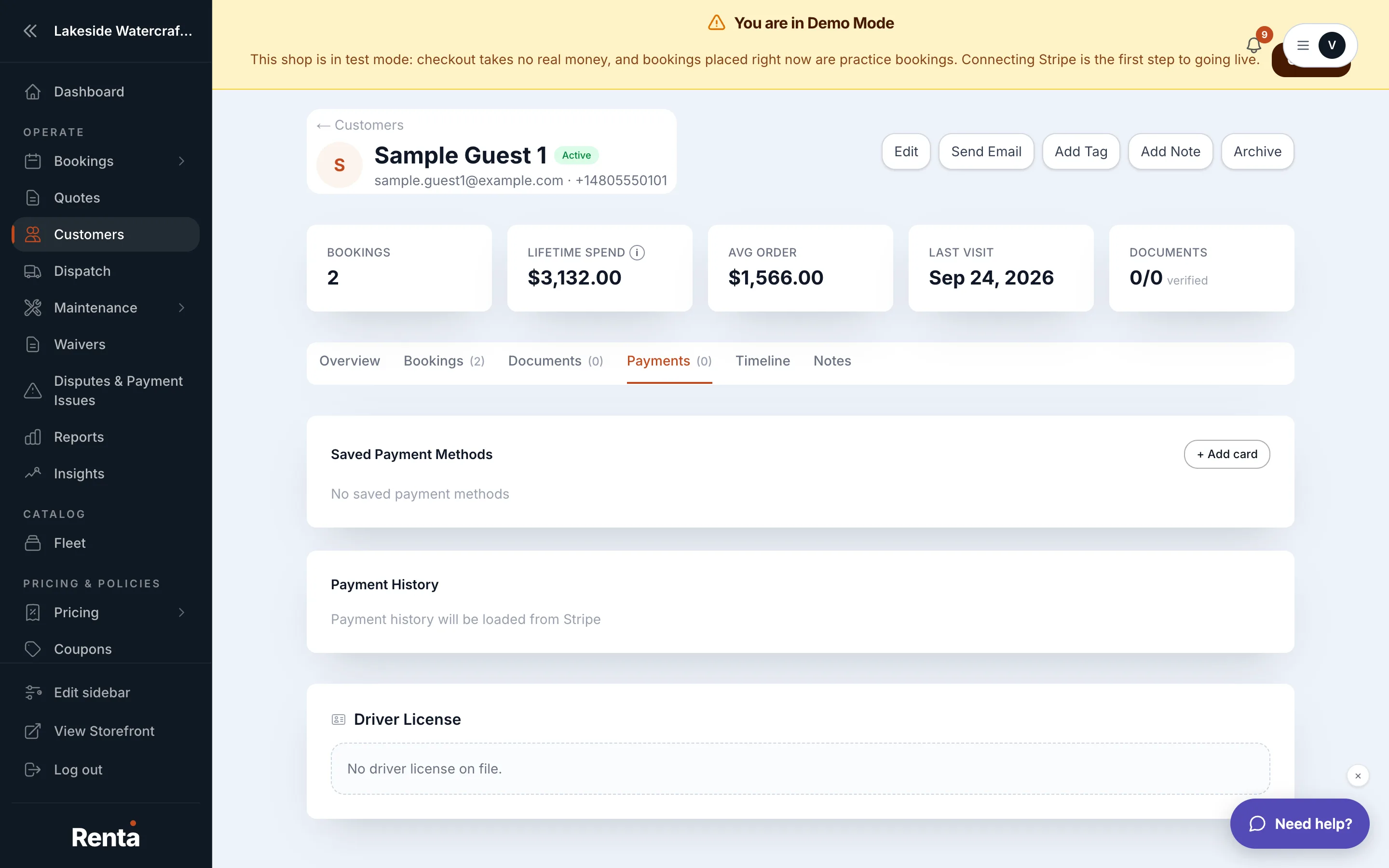 The Payments tab showing a saved card with the Set as default option
How it works
- Add payment method — opens the Stripe Link embed so the customer (or staff, on their behalf) can save a new card.
- Payment method row — shows the card's brand, last 4 digits, and a Default badge if Stripe treats it as that customer's default card. This badge is just a label — there's no button here to change which card is the default.
- Remove — deletes a saved card from the customer's account.
Example
A returning renter has two cards on file, one marked Default. Staff can see at a glance which one Stripe will use automatically, but changing that would need to happen wherever the customer manages their own Stripe Link wallet, not from this tab.
Good to know
Removing a saved card requires owner or manager permission and asks for confirmation first, since it can't be undone. This is a separate list from the one-time card a customer enters at checkout — this tab only shows cards they've chosen to save.
Related
Still stuck? Ask the chat.