Internal notes and photos on a customer
Staff-only notes and reference photos attached to a customer, kept separate from formal documents.
Where to find it
Customers → open a customer → Notes tab
The Notes tab lets staff keep informal notes and reference photos on a customer. Nothing here is ever shown to the customer.
Where to find it
Customers → open a customer → Notes tab
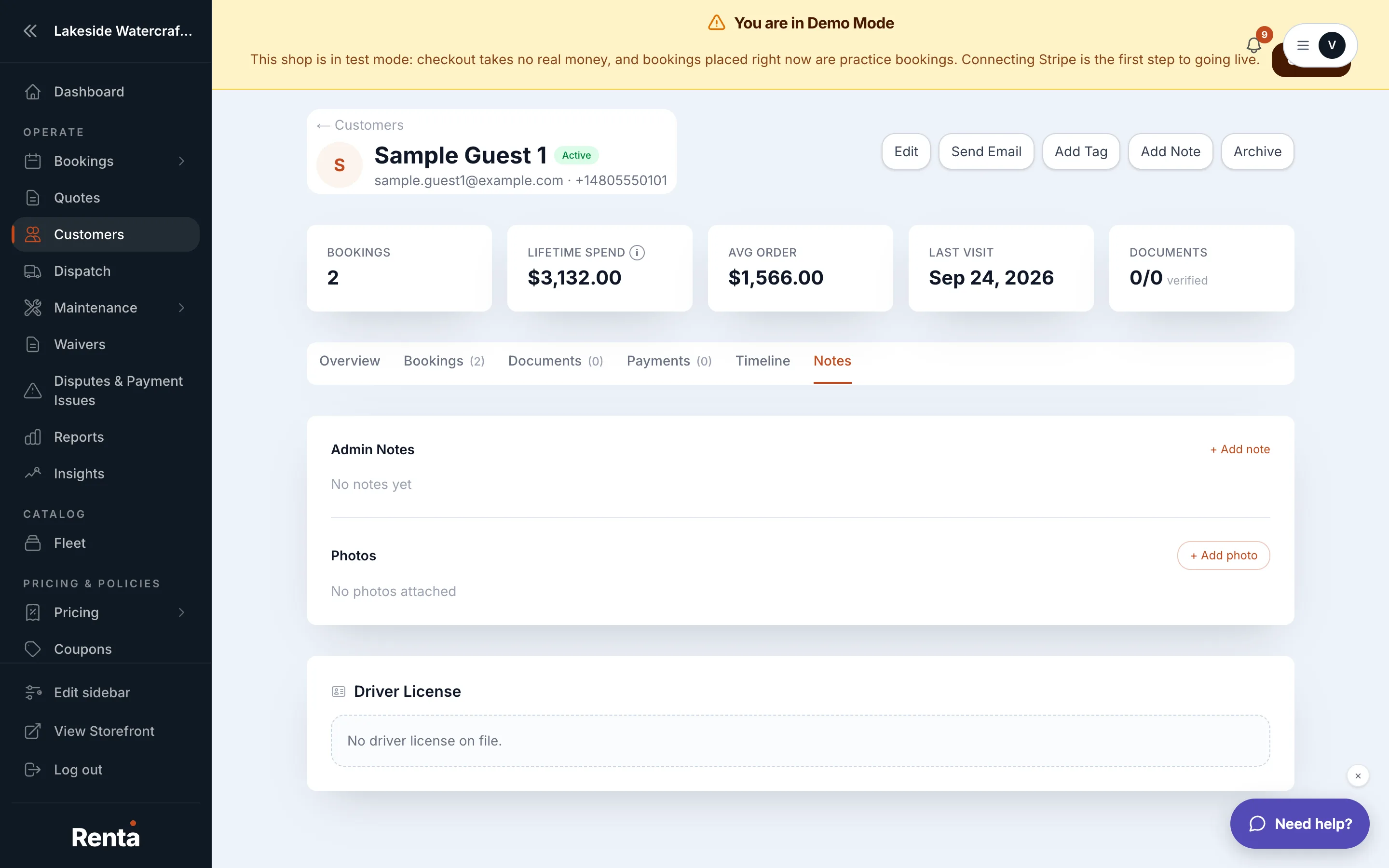 The Notes tab with a note and a photo grid
How it works
- Add note — type into the text box and click Save. Each new note is appended to the customer's running notes with a date and time stamp, so nothing you've written before is overwritten. Notes don't show who wrote them, and once saved a note can't be deleted or edited on its own.
- Photos — a grid of images separate from the formal Documents tab, meant for quick references like a damage photo or a selfie.
- Photo upload — click + Add photo to attach an image; once uploaded it's read-only.
Example
After a return, a staff member notices a small scratch on a jet ski and adds a note plus a photo. The note is timestamped and added below any earlier notes, so the full history stays visible to the next person who checks that unit.
Good to know
Photos here are for quick, informal references — a scanned license or signed waiver belongs on Storing a customer's ID and documents instead, since that tab tracks verification status.
Related
Still stuck? Ask the chat.