Storing a customer's ID and documents
Upload a customer's license, ID, passport, insurance, or waiver, and see which ones Stripe has verified.
Where to find it
Customers → open a customer → Documents tab
The Documents tab is where you keep formal paperwork for a customer — their driver's license, ID, passport, insurance card, or a signed waiver.
Where to find it
Customers → open a customer → Documents tab
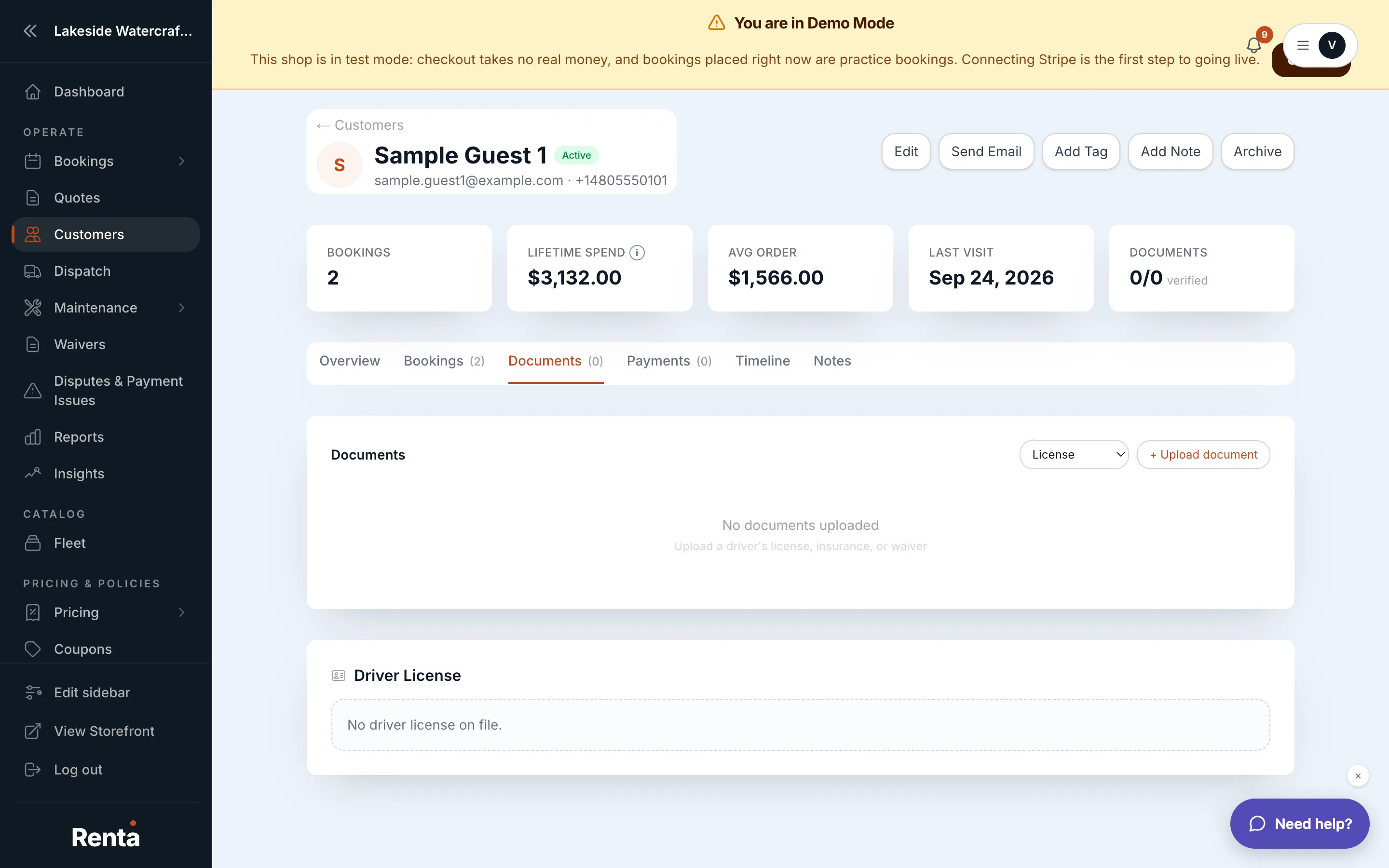 The Documents tab showing an uploaded license with a Verified badge
How it works
- Upload document — pick a file and choose its type before uploading.
- Document type selector — choose from License, Insurance, or Endorsement.
- Document row — shows the type, whether it's verified, the upload date, and a button to view or download it.
- Verified badge — a green checkmark that a staff member turns on by hand after checking the document themselves; it isn't set automatically.
Example
A renter uploads their driver's license before picking up a jet ski. Once a staff member has looked it over and confirmed it's genuine, they mark it Verified so the next person who checks that customer's file can trust it at a glance instead of re-checking it themselves.
Good to know
Documents are different from Photos, which are informal reference images (damage shots, a selfie) kept on the Notes tab instead. The driver's license number itself is shown separately — see Viewing a customer's driver's license number.
Related
Still stuck? Ask the chat.