Everything about one booking, in one place
Customer info, rental items, notes, and rental period all live on the booking detail page.
Where to find it
Bookings → click any booking → Overview tab
Opening a booking takes you to one page with everything about that rental: who booked it, what they rented, when, and any notes your team has left.
Where to find it
Bookings → click any row → you land on the Overview tab.
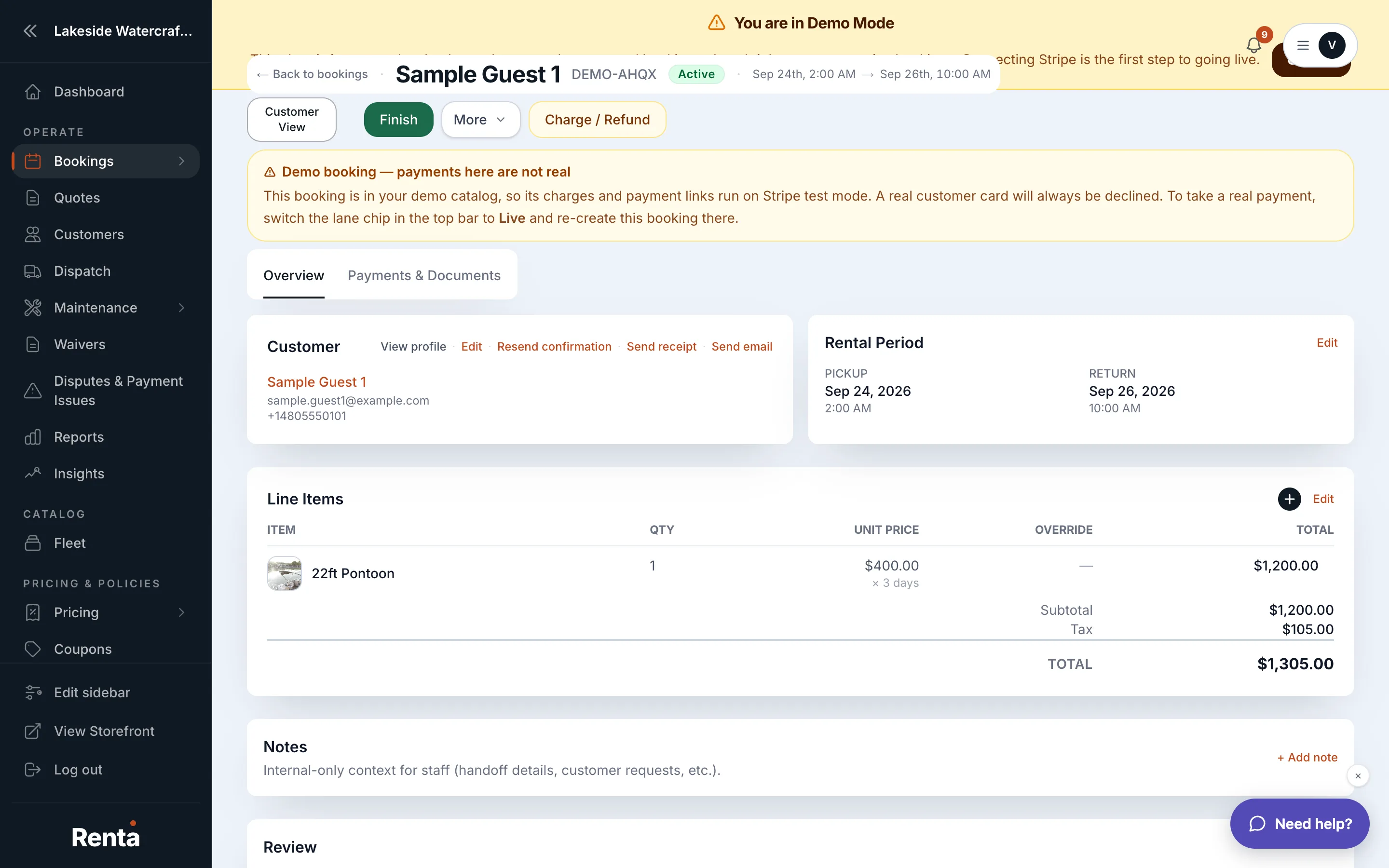 The Overview tab of a booking's detail page
How it works
- Customer card — the customer's name, email, and phone number. Click to edit any of them.
- Items list — every fleet item on the booking, with quantity, pickup/return dates, and the pricing breakdown. You can remove items or change dates here.
- Rental notes — free-text notes for your own team; customers never see these.
- Checkout responses — whatever the customer filled in or signed during checkout (like waiver signatures or custom form answers). This is read-only, since it came from the customer.
- Door codes — if you use a smart-lock integration, the access code for this rental appears here with a copy/refresh option.
- Assigned units — which specific unit (if you track individual units) is assigned to each item, editable here.
- Early return units — if a unit came back early, any damage notes show here.
- Rental period — the pickup and return dates and times. Editing this changes the price.
Example
If a customer calls to say they'll drop the jet ski off a day early, you can note it on the Early return units card once it's checked in, without needing to touch the pricing.
Good to know
- Editing the rental period recalculates price the same way rescheduling does.
- Payment history and signed waivers live on a separate tab — see Payment history and signed documents on a booking.
Related
Still stuck? Ask the chat.