Creating a booking yourself (front-desk / phone booking)
Walk a walk-in or phone customer through a booking yourself, from picking items to collecting payment.
Where to find it
Bookings → New booking
Creating a booking yourself lets you take a reservation over the phone or at the counter, the same way a customer would book online, but with you driving.
Where to find it
Bookings → New booking button.
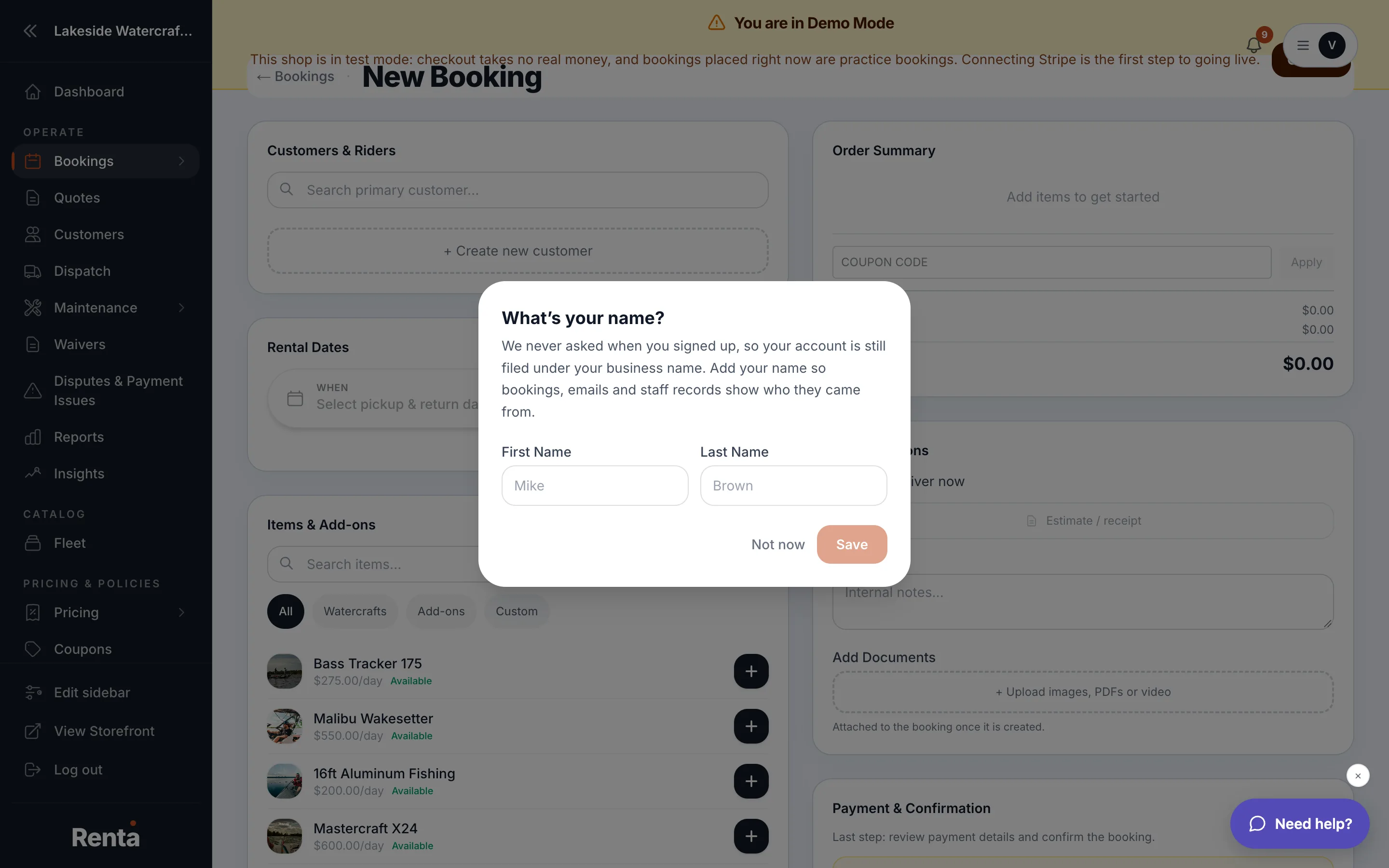 The New Booking form
How it works
1. Customer lookup — search for an existing customer or add a new one; a guest booking just needs an email. 2. Item selection — search your fleet, pick any variant options, and set quantity. 3. Pickup/return dates & times — a calendar picker; unavailable dates are grayed out with a tooltip explaining why. 4. Pricing breakdown — an itemized total shown automatically, including deposit and taxes. 5. Payment method — Cash, Check, Other, Stripe (card), or don't collect payment now. 6. Send to customer — email (and text, if set up) a copy of the confirmation.
A deposit hold created this way defaults to auto-releasing 7 days after the return date unless you change it.
Example
A walk-in customer wants to rent gear today with cash. Search or add them as a customer, add the item, set today's dates, choose Cash as the payment method, and skip the Stripe card step entirely.
Good to know
- The form autosaves your progress locally, so if your browser closes partway through, reopening New booking picks up where you left off — there's a Clear draft button if you want to start fresh.
- If the item is a bundle (several items sold together), you'll be asked to pick which specific components to include.
Related
Still stuck? Ask the chat.