Finding a booking
Search bookings by confirmation number or customer name, and filter by status or date.
Where to find it
Bookings (left sidebar)
The Bookings page lists every reservation for your business. Type a confirmation number or a customer's name into the search box to jump straight to it, or use the status tabs to narrow the list down.
Where to find it
Click Bookings in the left sidebar.
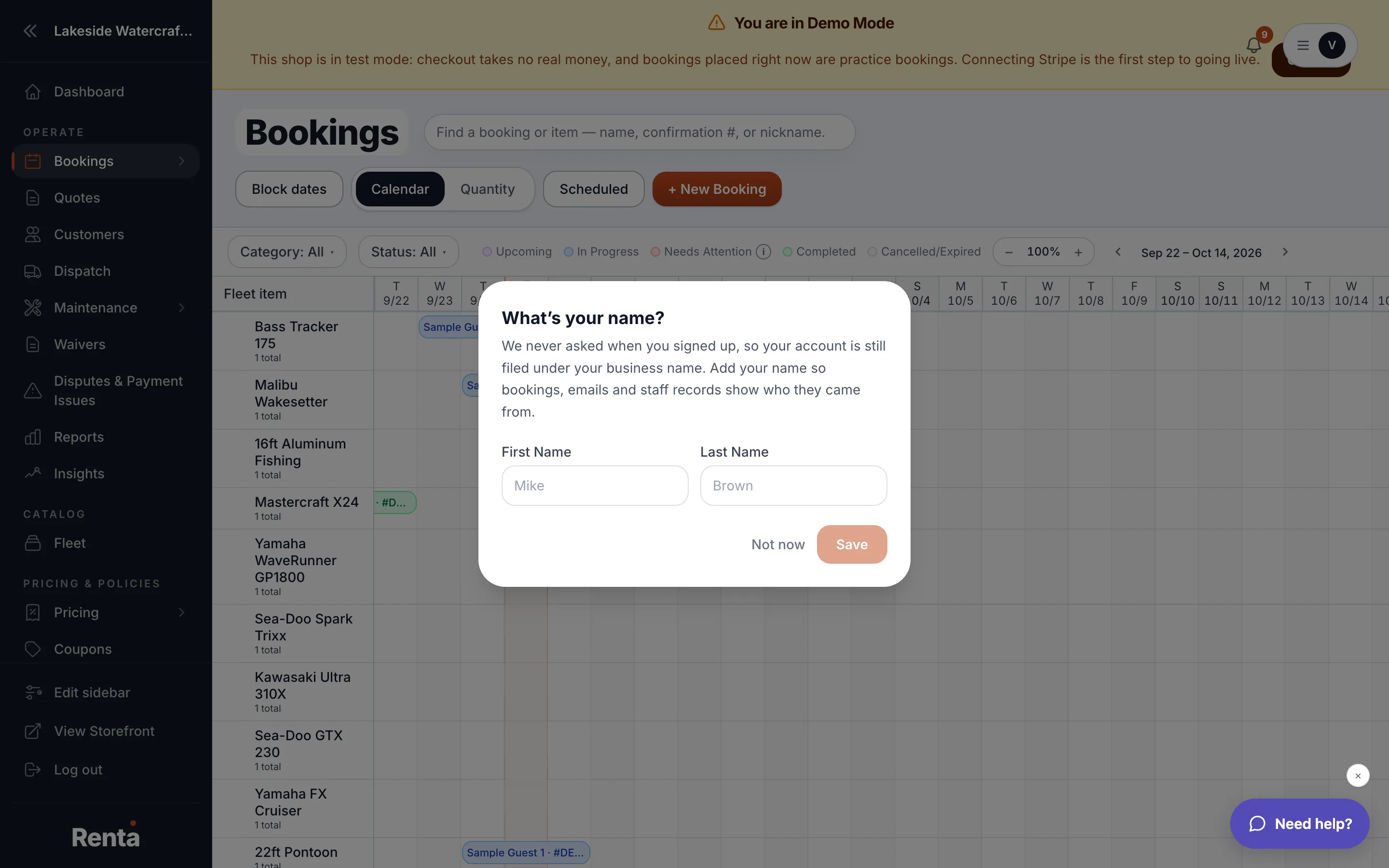 The Bookings list with the search box and status tabs
How it works
- Search field — matches a confirmation number or a customer name (it doesn't need to be exact — close spellings still match). Empty by default, and returns up to 200 matches.
- Status tabs — filter chips for Active, Upcoming, Completed, and Cancelled. Click the × on a chip to clear it and see everything.
- Availability calendar (on a computer screen) — shows every rental item in rows with dates across the top, so you can see at a glance what's booked and what's free.
- List view (on a phone or narrow screen) — shows 25 bookings per page with next/previous buttons instead of the calendar.
- A small pill in the corner shows whether you're looking at Demo or Live bookings, matching whichever mode (Demo or Live) you're currently working in.
Example
If a customer named Sarah calls asking about her jet ski rental, type "Sarah" into the search box instead of scrolling through every booking — it will surface her reservation even if you only remember part of her name.
Good to know
- The status tabs only filter what you already see — they don't change what's in the system.
- Each row links to the full booking detail page, where you can see and edit everything about that rental.
Related
Still stuck? Ask the chat.