Warning banners on a booking, explained
What the payment, waiver, attachment, and unit warning banners on a booking mean and when they show.
Where to find it
Bookings → open a booking → banner at the top of the page
A booking page can show a colored banner near the top to flag something that needs your attention. Each banner means something specific — here's what each one is telling you.
Where to find it
Bookings → open any booking. Any active banners appear right below the header.
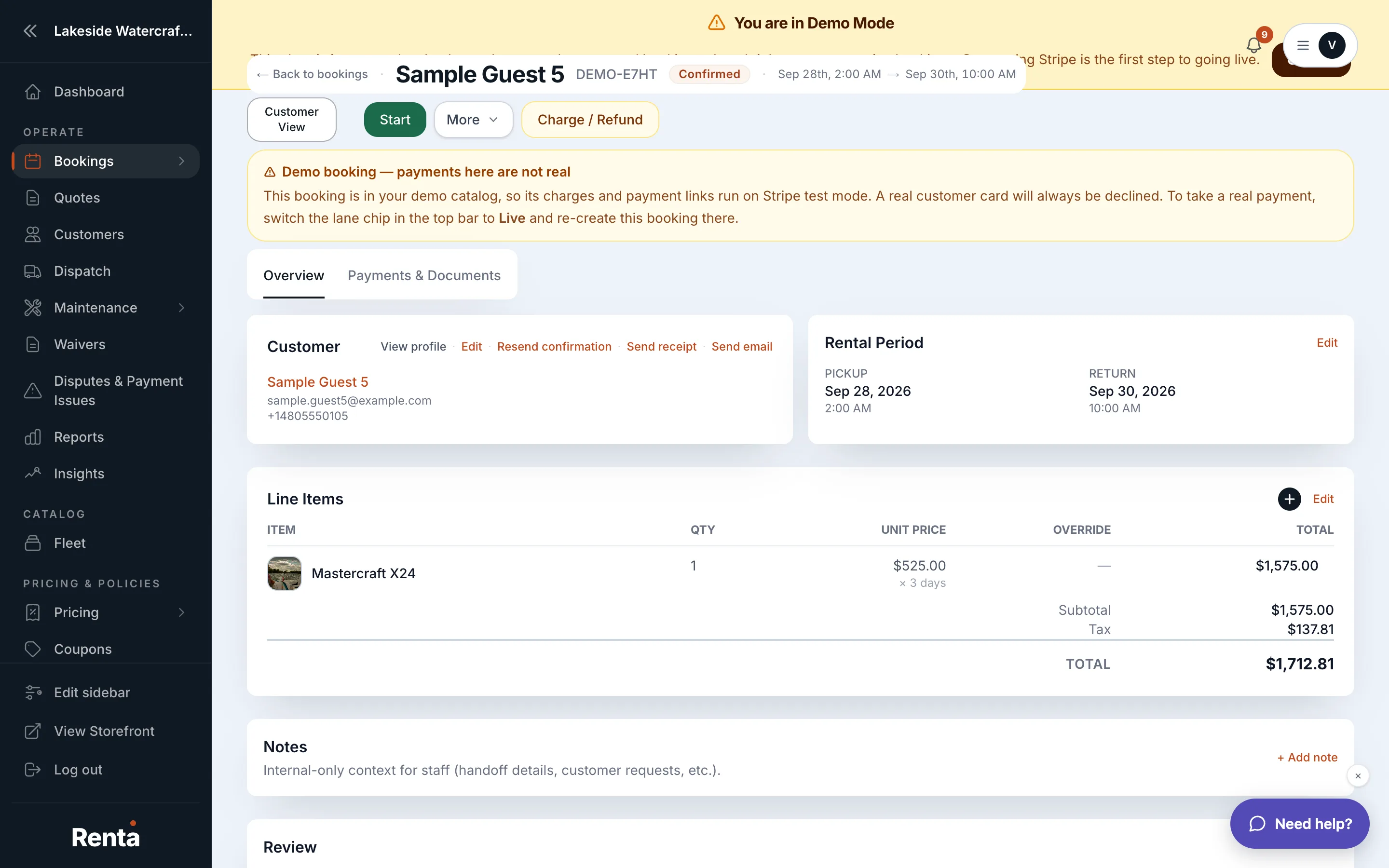 Warning banners at the top of a booking's detail page
How it works
- Payment pending (amber) — payment setup started but hasn't finished, or is waiting to be resolved.
- Payment setup failed (red) — your business's payment processing (Stripe Connect) isn't fully configured, so the booking can't collect payment yet.
- Discount warning — flags something to double-check about a discount applied to the booking.
- Primary waiver failed (red) — the customer's liability waiver signature or attestation didn't go through.
- Attachment warning (orange) — something about an attached file (like a photo or document) needs review.
- Unit warning (orange) — a specific rental unit assigned to this booking needs attention.
- Past-due indicator — appears if the return date has passed and payment still isn't resolved.
- Demo lane (blue) — appears if you're looking at a booking made in Demo mode rather than Live.
Example
If you open a booking and see a red "Primary waiver failed" banner, don't hand over the equipment yet — follow up with the customer to get a valid waiver signed first.
Good to know
- "Payment setup failed" is a business-wide setup problem, not something wrong with just this one booking — check your payment processor connection in settings.
- These banners are separate from the booking's status; a booking can be "confirmed" and still show a warning that needs a look.
Related
Still stuck? Ask the chat.