Moving a booking through its lifecycle
The Confirm, Check Out, Finish, Cancel, and Reopen buttons move a booking to its next stage.
Where to find it
Bookings → open a booking → buttons top-right, or Actions menu (More) for Reopen
These buttons move a booking forward through its lifecycle. Which ones you see depends on the booking's current status — you'll never see a button for a step that doesn't apply yet.
Where to find it
Bookings → open a booking → buttons in the top-right of the page. Reopen rental and Reopen booking are unusual backward moves, so they sit behind a confirmation step.
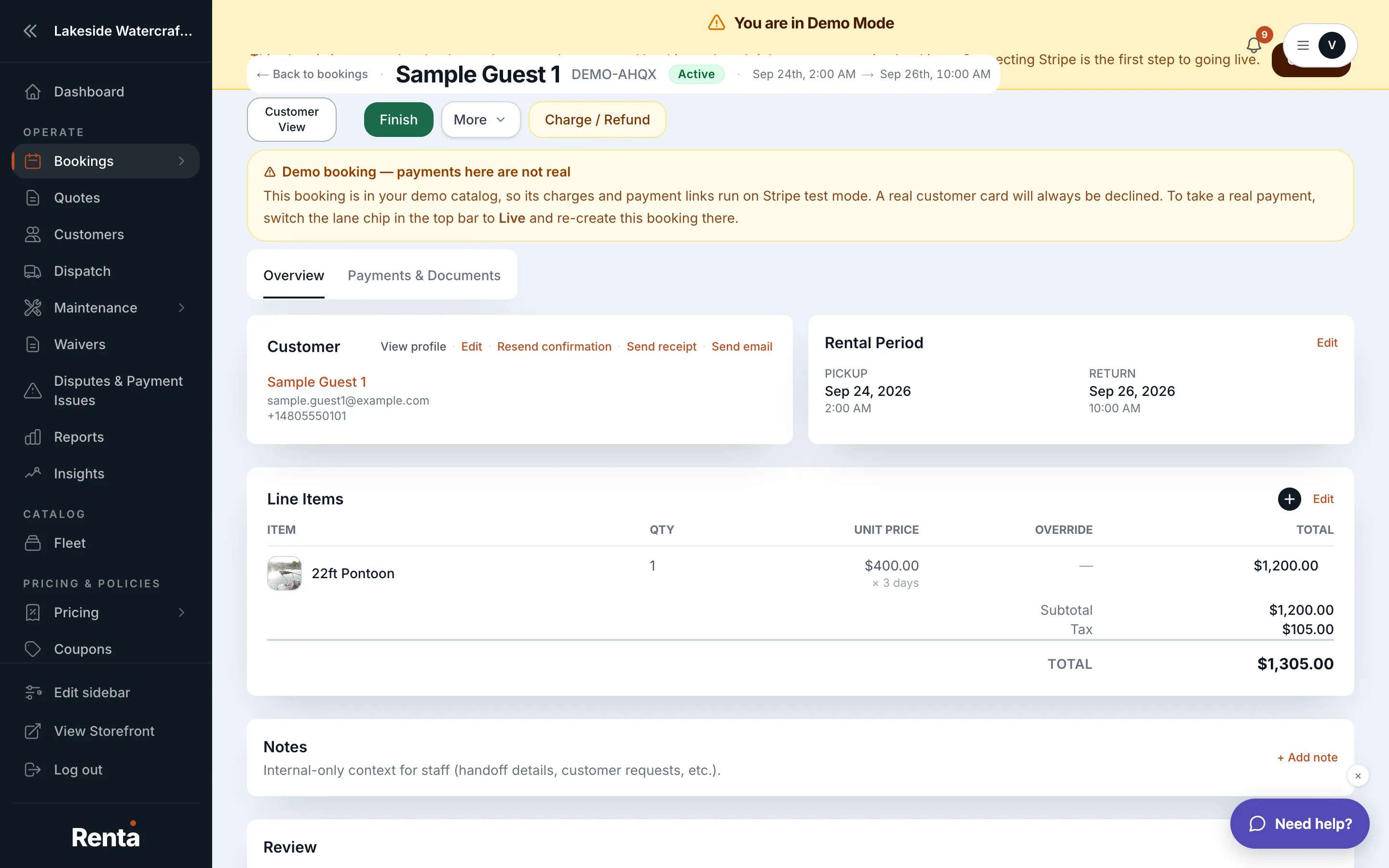 The status transition buttons at the top of a booking
How it works
- pending → Confirm (to confirmed) or Cancel (to cancelled).
- pending_payment → Confirm (to confirmed) or Cancel (to cancelled). There's no separate Check Out step from this status — a booking confirms first.
- confirmed → Check Out (to active, meaning the customer now has the equipment) or Cancel (to cancelled).
- active → Finish (to completed) or Cancel (to cancelled).
- completed → Reopen rental (back to active), if you need to make a change after marking it finished.
- cancelled → Reopen booking (back to pending), if a booking was cancelled by mistake. This doesn't restore payment or a deposit hold — you'd re-confirm it like a fresh booking.
- expired → Cancel (to cancelled) only.
Example
A customer's payment is confirmed the morning of their rental — the booking moves from confirmed to active the moment you click Check Out as they pick up the dirt bike.
Good to know
- These buttons change the booking's status only — they don't take or move money by themselves. Charges, refunds, and deposits are handled from the Actions menu instead.
- Reopening a cancelled booking doesn't guarantee the same items are still available — someone else may have booked them while it sat cancelled.
Related
Still stuck? Ask the chat.