Bulk-adding items from a spreadsheet
Upload or paste a CSV to create many fleet items at once, preview them, then import.
Where to find it
Fleet → Import from CSV
Instead of creating fleet items one at a time, you can upload a spreadsheet (comma-separated values, or CSV) and create many items in one pass.
Where to find it
Fleet → Import from CSV.
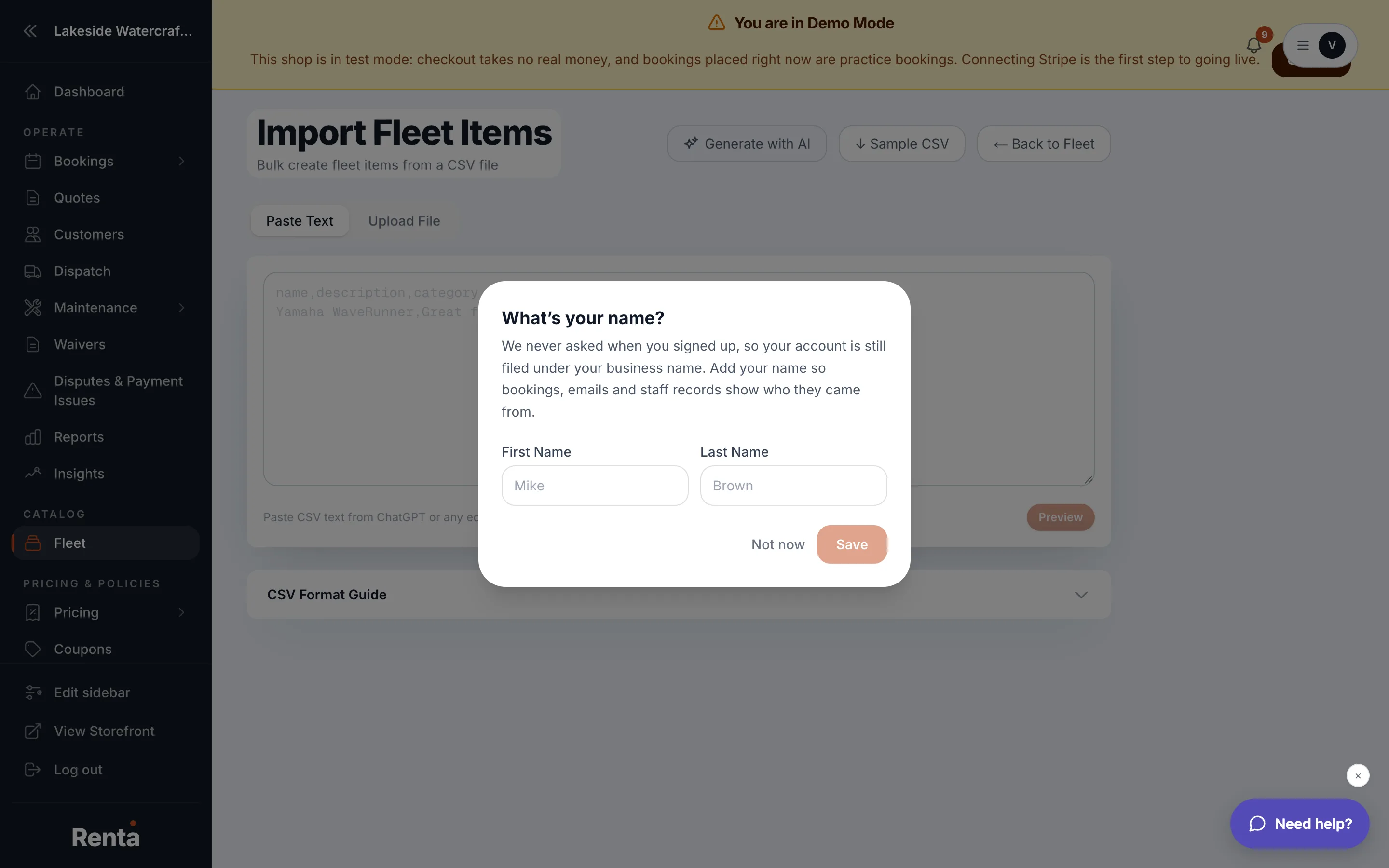 The CSV import upload step
How it works
Import runs in three steps:
1. Upload — either:
- File upload: drag or select a `.csv` file, 5MB or smaller, up to 500 rows, or
- Paste CSV: type or paste the CSV text directly, or
- Sample CSV download: a starter file showing the columns Renta expects — name, description, category, skill level, prices, deposit amount, and image URL.
2. Preview — every row is shown in a table before anything is saved, with any parsing or validation errors called out. The Import button only becomes active once there are no errors. 3. Results — shows how many items were created, lists any rows that failed and why, and links you back to the fleet list or straight into the first new item to finish setting it up.
Good to know
- Nothing is created until you confirm the import in the Preview step — uploading or pasting a file doesn't save anything by itself.
- A CSV import creates draft items. You'll still want to open each one to check pricing, photos, and requirements before publishing it — see Publishing an item to your storefront.
- The page includes a CSV Format Guide you can expand for the exact column names and examples.
Related
Still stuck? Ask the chat.