Organizing items into categories
Categories are the groupings customers browse by, in the order you choose, with their own default waiver.
Where to find it
Fleet → Categories
Categories are the groups customers browse by on your storefront — like "Jet Skis" or "Mountain Bikes." Every fleet item belongs to exactly one category, and the order you arrange categories in here is the order customers see them.
Where to find it
Fleet → Categories.
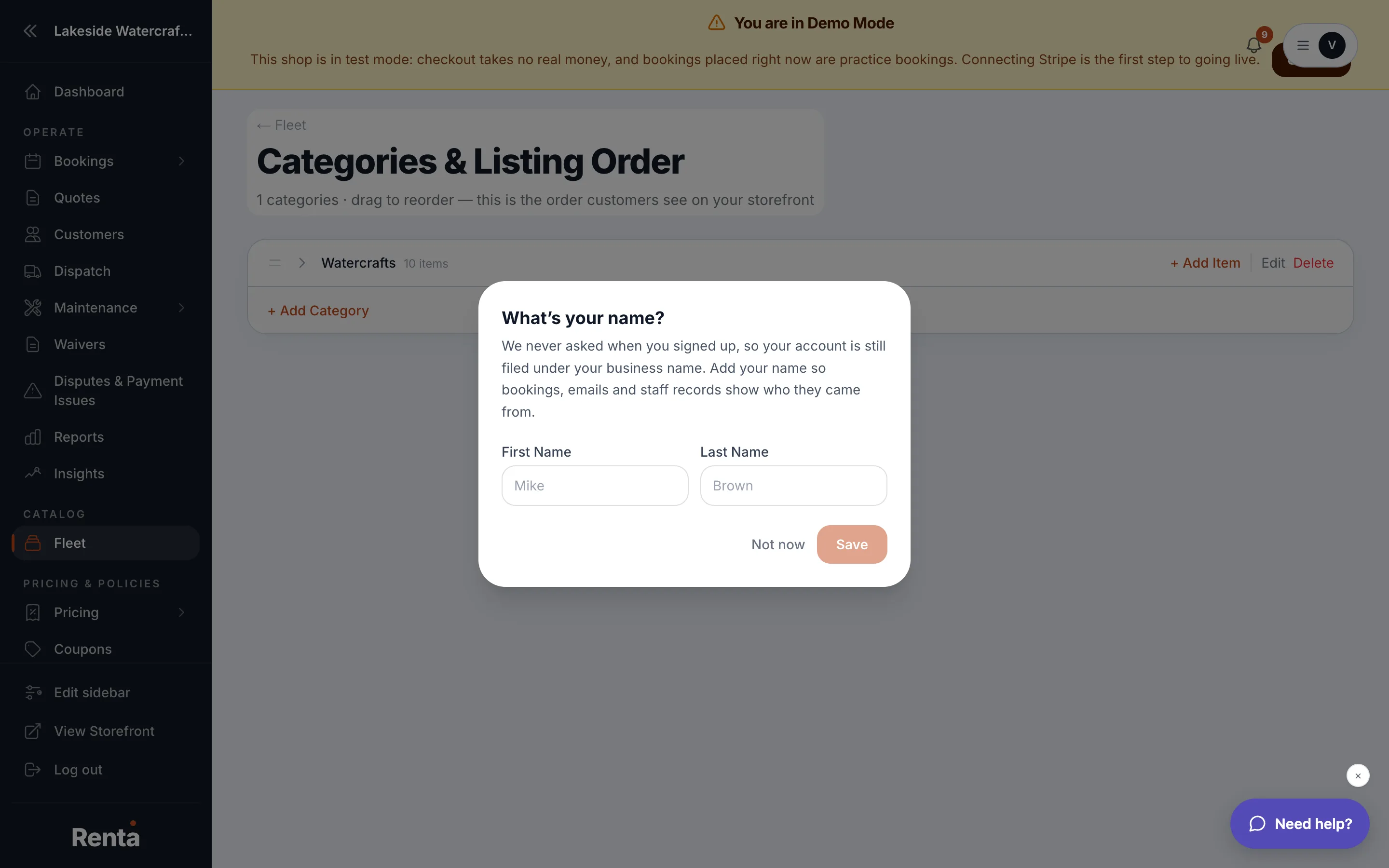 Categories & Listing Order, with drag-to-reorder
How it works
- Category Name — the name shown to customers; must be unique within your business.
- Category Slug — a web-friendly version of the name (e.g. "jet-skis"), generated automatically from the name.
- Description — internal notes about the category; customers don't see this.
- Category Image — a thumbnail shown on category listings.
- Waiver for this category — the waiver applied to any item in this category set to "inherit category default" for its own waiver. If you leave this as "No waiver," those items fall back to your business's own default waiver instead.
- Drag to reorder — drag a category row to change the order customers see on the storefront.
Good to know
- You can't delete a category while any fleet item is still assigned to it. Move or delete those items first, then delete the category.
- The category waiver only matters for items that choose "Inherit category default" on their own Requirements tab — see Waivers, age minimums, and requirements on one item.
Related
Still stuck? Ask the chat.