Browsing your fleet
The Fleet page lists every rental item you own, with search, filters, and status badges so you can find one fast.
Where to find it
Fleet (left sidebar)
The Fleet page shows every rental item in your business, one row or card per item, with a status badge so you can tell at a glance whether it's live, in maintenance, or retired.
Where to find it
Fleet in the left sidebar.
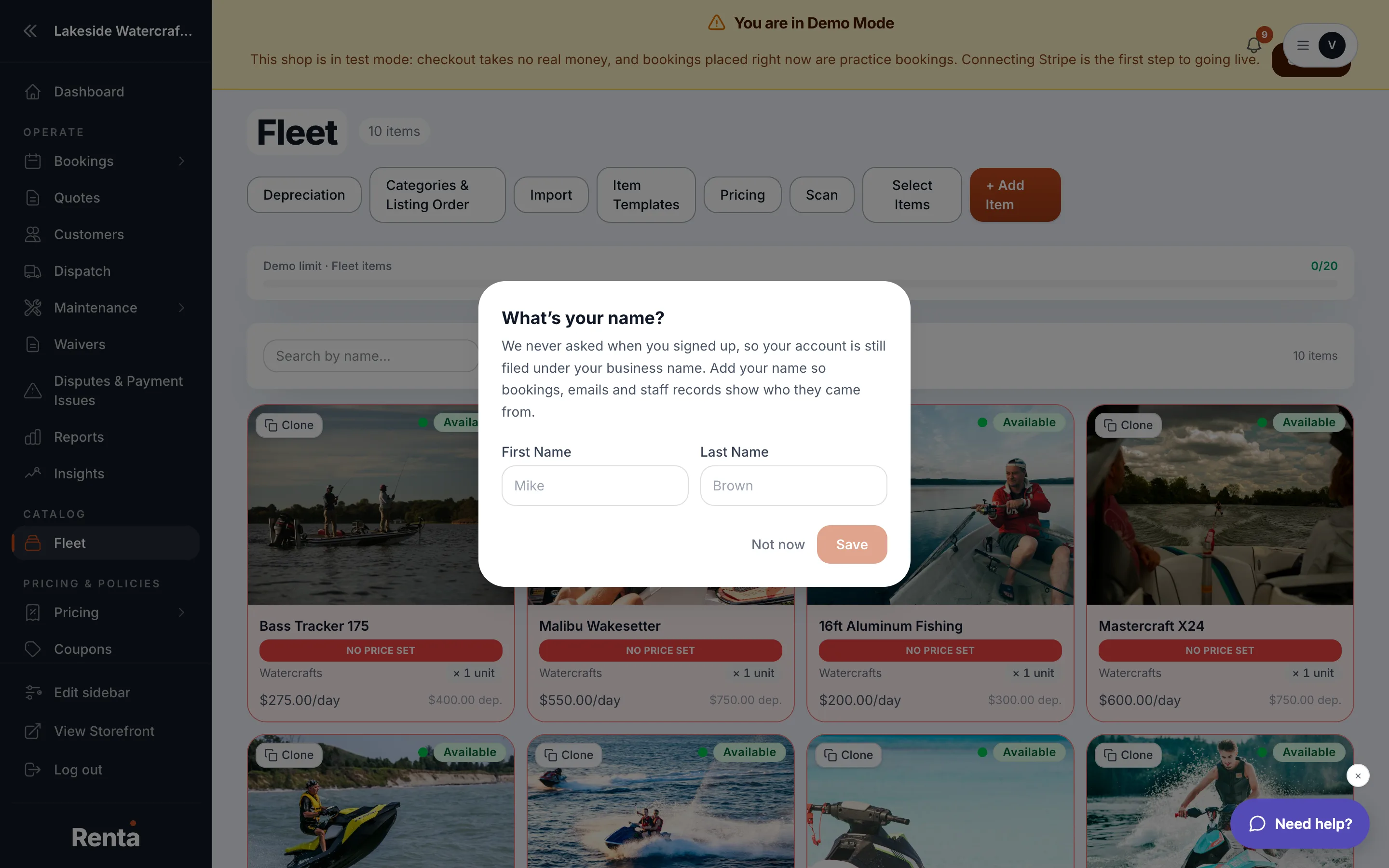 The Fleet list with search and filters
How it works
- Search — find an item by name.
- Category — narrow the list to one category (e.g. "Jet Skis").
- Status — filter to Available, In Maintenance, or Retired items.
- Location — filter to items stored at one pickup location.
- Characteristics — filter by a variant, like a specific color or size.
- List / Availability tabs — switch between a simple list and a calendar-style availability view (by booking or by quantity).
- Status badges — each item shows Live/Draft, In Maintenance, or Retired depending on its own settings and its units' condition.
From this page you can also start a new item, bulk-import items from a spreadsheet, scan a unit's QR code, or jump to Tags, Categories, or Item Templates.
Good to know
- If you haven't added anything yet, the page shows "No items yet. Create your first fleet item."
- A usage bar shows how many fleet items you've created against your plan's limit.
- To edit one item's settings, open it — see Naming and describing a rental item.
Related
Still stuck? Ask the chat.