Rearranging or hiding dashboard widgets
Drag widgets into a new order, hide the ones you don't use, and restore the default layout any time.
Where to find it
Dashboard → Edit Layout button (top-right)
You can rearrange, resize, or hide any dashboard widget so the dashboard shows only what matters to your business.
Where to find it
Click Edit Layout in the top-right of the dashboard.
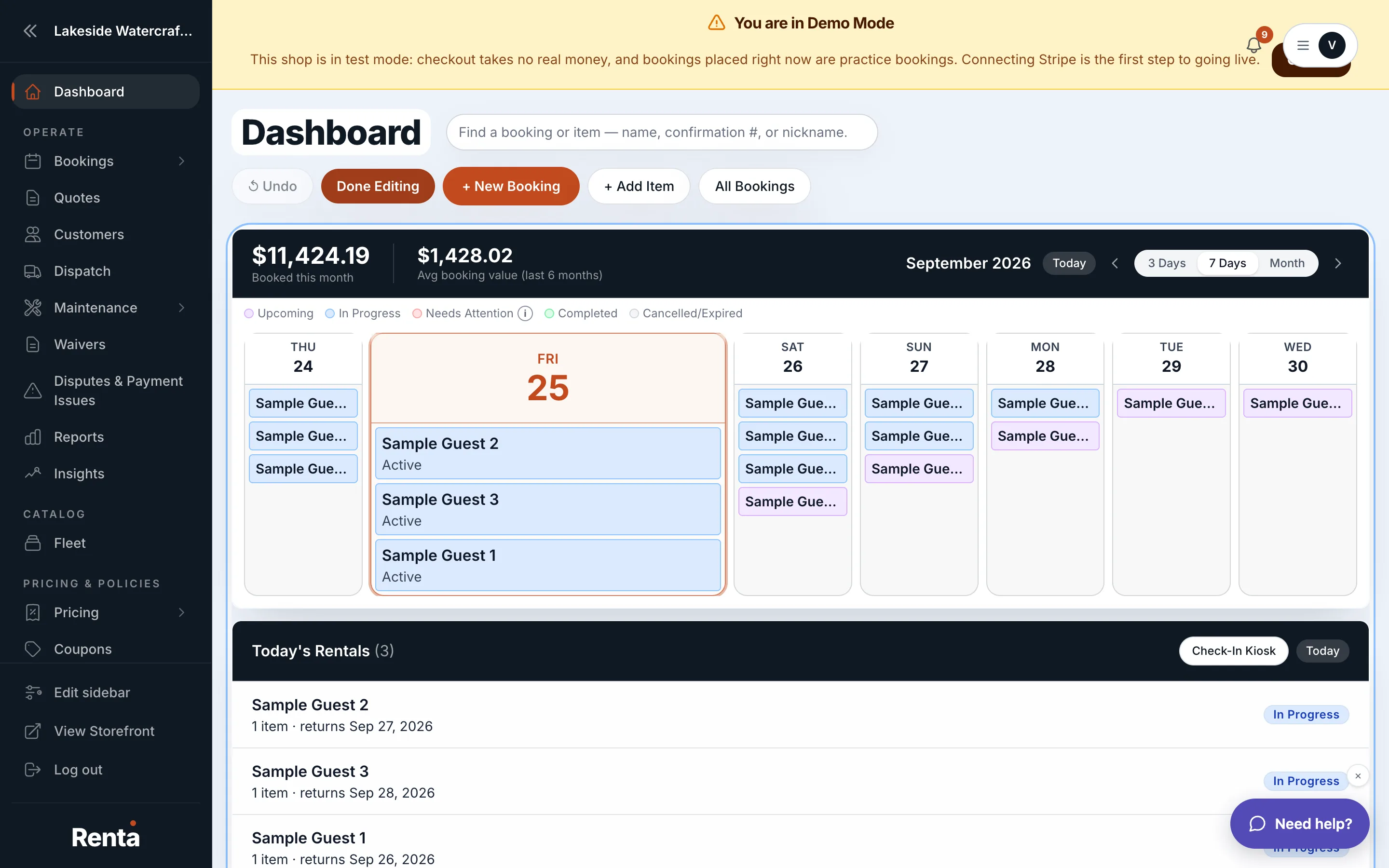 Dashboard in edit mode, showing drag handles and hide/show eye icons on each widget
How it works
- Clicking Edit Layout puts the dashboard into edit mode, showing a draggable card for each widget with an eye icon to hide or show it.
- Drag any widget to reorder it, and resize wide or narrow cards to change how much space they take up.
- Click the eye icon on a widget you don't want to see, and it disappears from your normal dashboard view.
- Click Done Editing (the button relabels itself once you're in edit mode) to save and exit.
- A Restore default option puts the layout back to how it started, undoing any hiding or reordering.
For example: if you don't use RideDog tracking, you can hide that widget entirely so it stops taking up space, while keeping Today's Rentals and Deposits Held front and center.
Good to know
- Your layout choices are saved both on this device and to your account, so they follow you if you log in elsewhere.
- Different staff roles (Owner, Manager, Staff) may already see different default widgets based on what they're allowed to view — hiding a widget only affects your own view, not other staff members'.
Related
Still stuck? Ask the chat.