The fleet grid widget (showing your items for booking)
Displays your rentable items — or your categories — as a browsable grid or carousel that customers can click into to book.
Where to find it
Website → open a page → Widget picker → drag "Fleet Grid" onto the canvas → click it to open its settings
The fleet grid is how customers browse what you rent directly on your website. It can show individual items as cards, or show your categories first (like "Dirt Bikes" and "Jet Skis") and let customers drill in.
Where to find it
Website → open a page → drag the Fleet Grid widget from the picker onto the canvas → click it to edit.
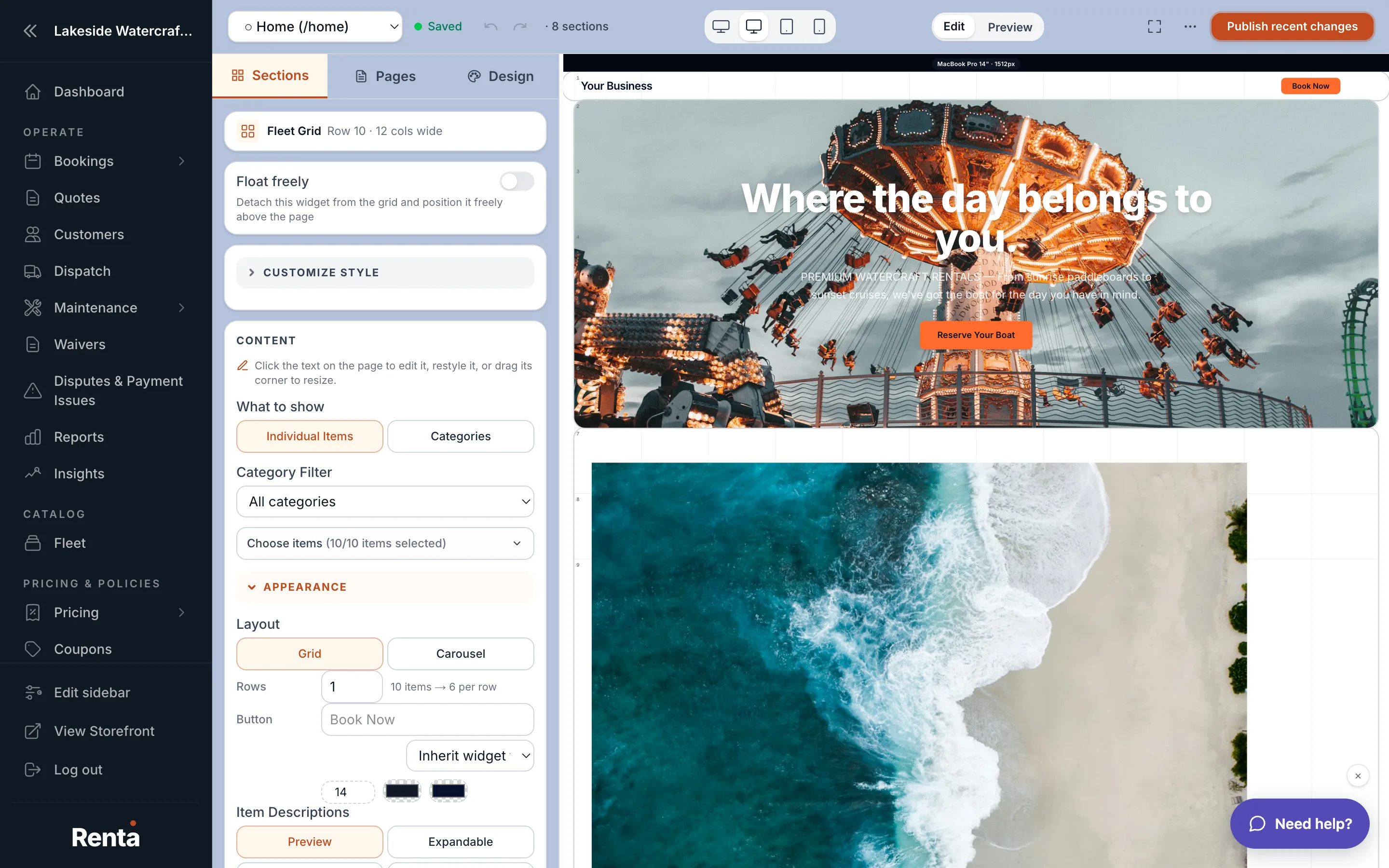 The Fleet Grid widget showing items laid out in a grid with a heading above
How it works
- Heading and Subheading: the title and supporting line above the grid.
- Mode: show individual items (default) as cards, or show categories first.
- Category filter: restrict this widget to one category, or leave it to show everything.
- Item/category selection: hand-pick exactly which items or categories appear, or leave it to automatically include everything in the category.
- Layout: grid (rows and columns) or carousel (a scrollable row).
- Rows: how many rows the grid uses — the number of columns is calculated automatically from how many items you're showing.
- Carousel motion (carousel layout only): scroll it by hand (default), have it auto-advance every few seconds, or have it slide continuously.
- When a category is clicked (categories mode only): open the booking flow filtered to that category (default), expand a dropdown of items right there, or link to a custom page you built for that category.
- Show item descriptions: hidden by default, or shown as an expandable "Details" link, or always shown.
- Book Now button label: defaults to "Book Now," but you can customize the text, font, size, and colors.
- Card text, heading, and subheading each have their own optional font, size, and color overrides.
Example
A dirt bike rental shop could set Mode to "categories," so the grid shows "Trail Bikes," "Dual-Sport," and "Youth Bikes" as three cards; clicking one opens the booking flow already filtered to that category.
Good to know
- Adding a new item to a category shows up in this widget automatically, unless you've hand-picked a specific list of items to show.
- If you link a category to a custom page and later delete that page, the click falls back to the normal booking flow instead of a broken link.
- Card colors and fonts you don't set here fall back to your site's theme — see Setting your site-wide colors, fonts and spacing.
Related
Still stuck? Ask the chat.