Adding your ACG AI chat assistant to your site
Put an AI chat bubble powered by ACG on your public storefront to answer customer questions automatically.
Where to find it
Settings → ACG Assistant
The ACG Assistant integration puts your own ACG-powered AI chat bubble on your public storefront, so customers can get automatic answers without waiting for a staff reply.
Where to find it
Settings → ACG Assistant.
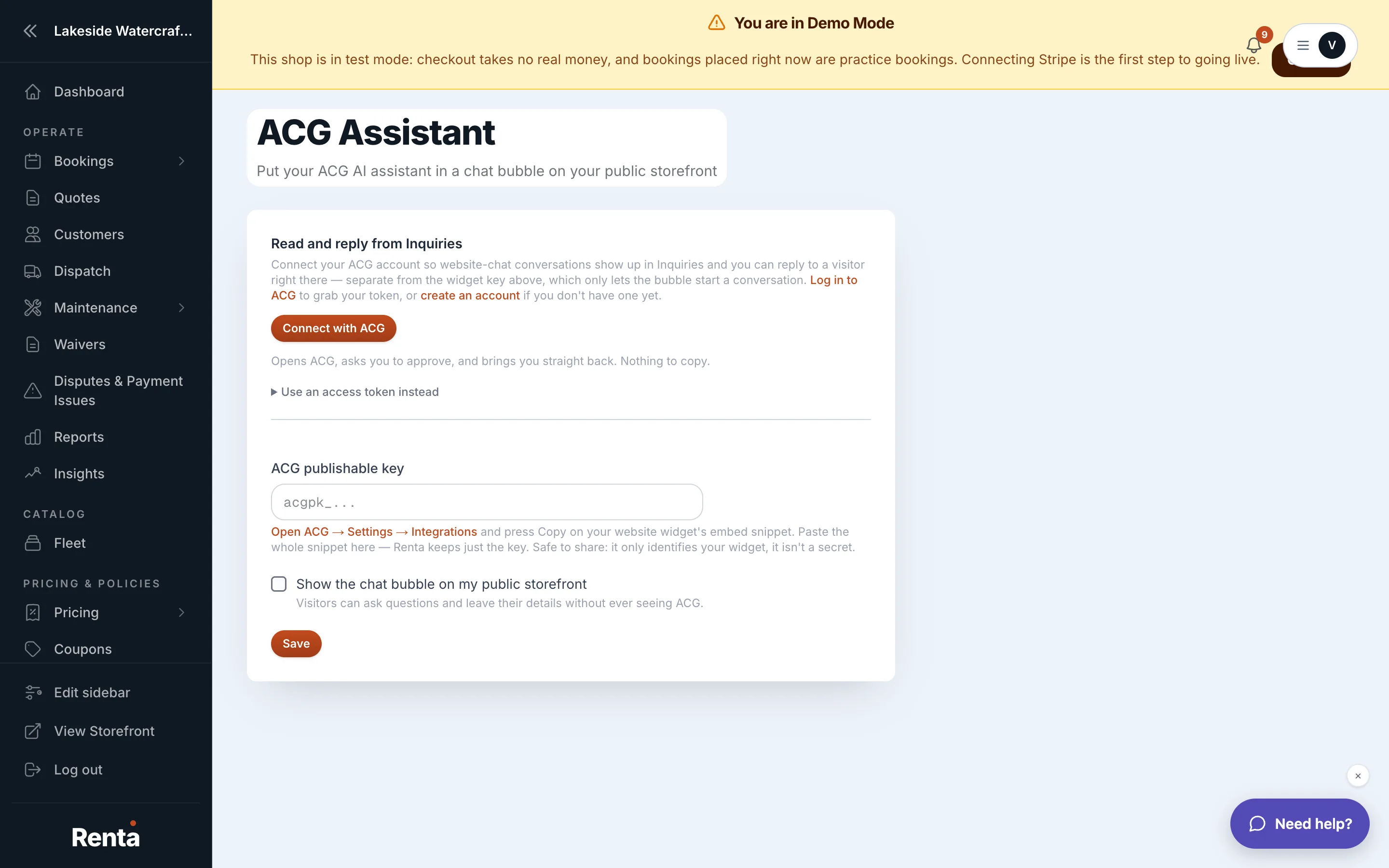 The ACG Assistant page with Connect with ACG button and Enable widget toggle
How it works
- ACG account status — shows your connected business name, or an error if something's wrong.
- Connect with ACG button — starts a sign-in flow to authorize the ACG integration.
- Enable widget toggle — turns the chat bubble on or off on your storefront. Off by default.
- Use an access token instead — an optional, collapsed section for connecting with a personal access token from ACG (found under ACG's own Settings → Tokens) instead of the Connect with ACG button. Meant for situations where you can't complete the sign-in approval in this browser, such as a shared admin login. The token is stored encrypted and never shown again once you connect.
- Save button — saves your settings.
If the connection attempt fails or is denied, a message appears at the top of the page explaining what went wrong (denied, expired, or a failed connection).
Example
After connecting with ACG and turning Enable widget on, a chat bubble appears on your storefront where customers can ask questions and get instant answers powered by your ACG assistant.
Good to know
- This is a separate assistant from Renta's own Help Chat — this one is yours, powered by ACG, and shown to your customers; Renta's Help Chat is Renta's own support widget.
- Connecting via the Connect with ACG button is the recommended path; the access token option is only for cases where you can't complete that sign-in yourself.
Related
Still stuck? Ask the chat.