Printing QR stickers for your equipment
Print scannable asset tags so staff can pull up a unit instantly by scanning it.
Where to find it
Fleet → open an item → Print labels (batch), or a unit's own Label link (single)
Renta can generate a printable QR code sticker for each tracked unit, so staff can scan it in the field and jump straight to that unit's page instead of searching for it by name.
Where to find it
Fleet → open an item → print labels for all units at once, or open a single unit and use its Label link to print just that one.
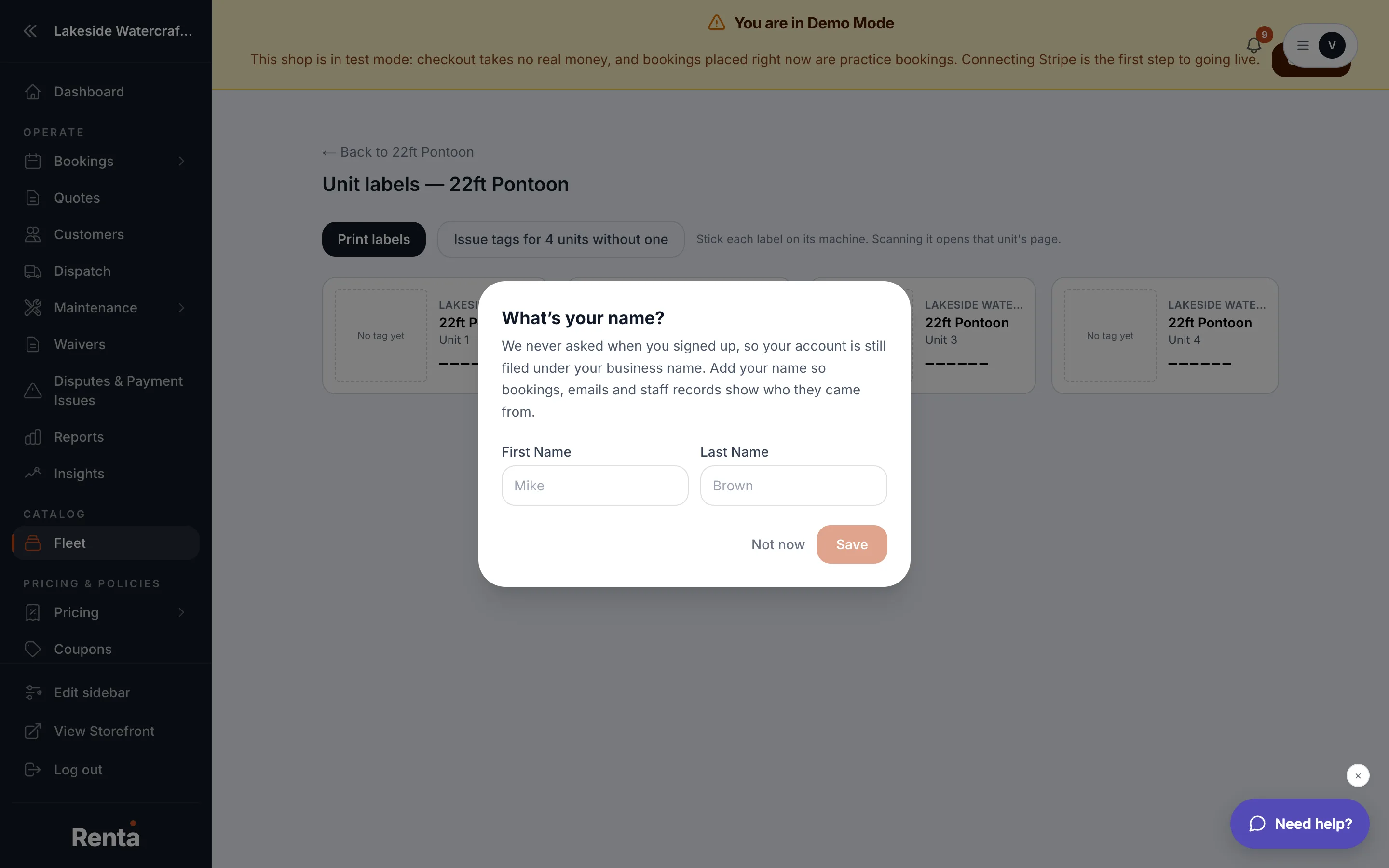 A printable sheet of unit QR labels
How it works
- QR Code — a scannable code linking directly to that unit's page. Scanning it opens the unit resolver, which finds and opens the right unit automatically.
- Unit Label — the unit's nickname (e.g. "Jet Ski #2") or a generic "Unit {number}" if you haven't named it.
- Asset Tag — the unique identifier printed alongside the code (e.g. "RES-0042"), or the serial number if one is on file.
- Item Name and Tenant Name — printed for reference so a sticker is identifiable even off the sheet.
- Print button — opens your browser's print dialog; the surrounding admin navigation is hidden automatically when printing.
If an item has no individually-tracked units yet, the batch label page tells you to turn on individual tracking first, or give a unit a nickname on the item's inventory section.
Good to know
- The batch page prints one sticker per unit on a sheet meant for standard label sheets; the single-unit page prints just one, meant to be applied right away.
- Scanning a printed code takes you to Scanning a unit's QR code, which is also usable with manual entry if a code is damaged or unreadable.
Related
Still stuck? Ask the chat.