Scanning a unit's QR code
Point a camera at a printed sticker, or type its code by hand, to jump straight to that unit's page.
Where to find it
Fleet → Scan a unit
Instead of searching your fleet list to find one specific unit, you can scan its printed QR sticker (or type its asset tag) and get taken straight to that unit's page.
Where to find it
Fleet → Scan a unit (also reachable by scanning any printed unit label directly with a phone camera).
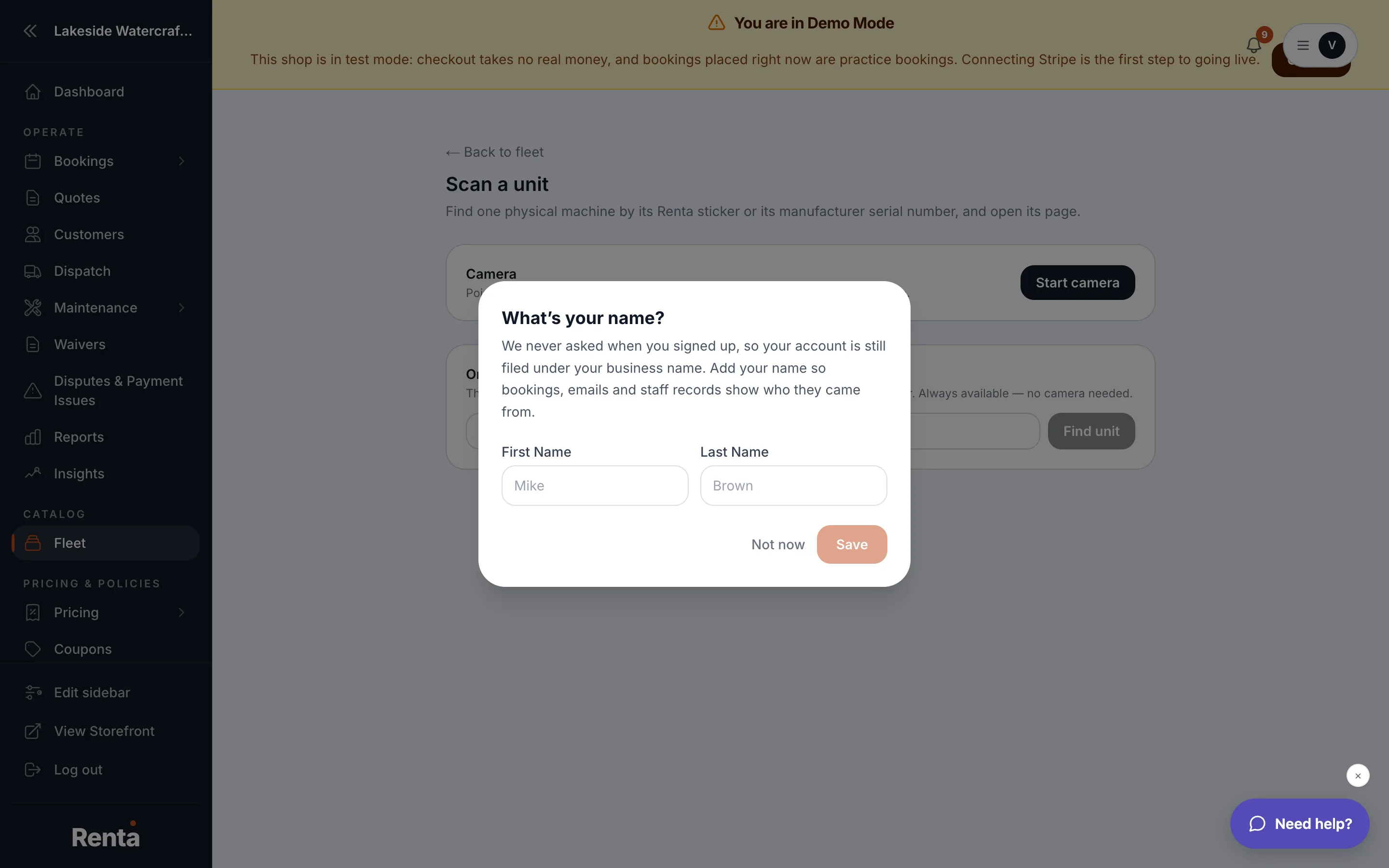 The unit scan camera and manual entry panel
How it works
- Camera input — uses your device's camera to read a QR sticker. Requires camera permission.
- Manual entry — type the asset tag or serial number and search, if scanning isn't practical.
- Resolution outcomes:
- Found — takes you directly to that unit's health page.
- Not found — shows a "Unit not found" message.
- Ambiguous — if more than one unit could match, shows a list to choose from.
Good to know
- Every printed sticker links to this same resolver — see Printing QR stickers for your equipment for how to generate them.
- This only works for units tracked individually — bulk-tracked items don't have per-unit codes.
Related
Still stuck? Ask the chat.