Building your website with the drag-and-drop editor (Site Builder)
The Site Builder is a drag-and-drop canvas where you add and arrange widgets to build your public website page by page.
Where to find it
Website (sidebar) → Site Builder canvas
The Site Builder is where you build your public website. You add blocks called widgets — a hero banner, a fleet grid, a photo gallery, and so on — onto a grid, and arrange them into pages your customers can visit.
Where to find it
Click Website in the sidebar to open the Site Builder canvas.
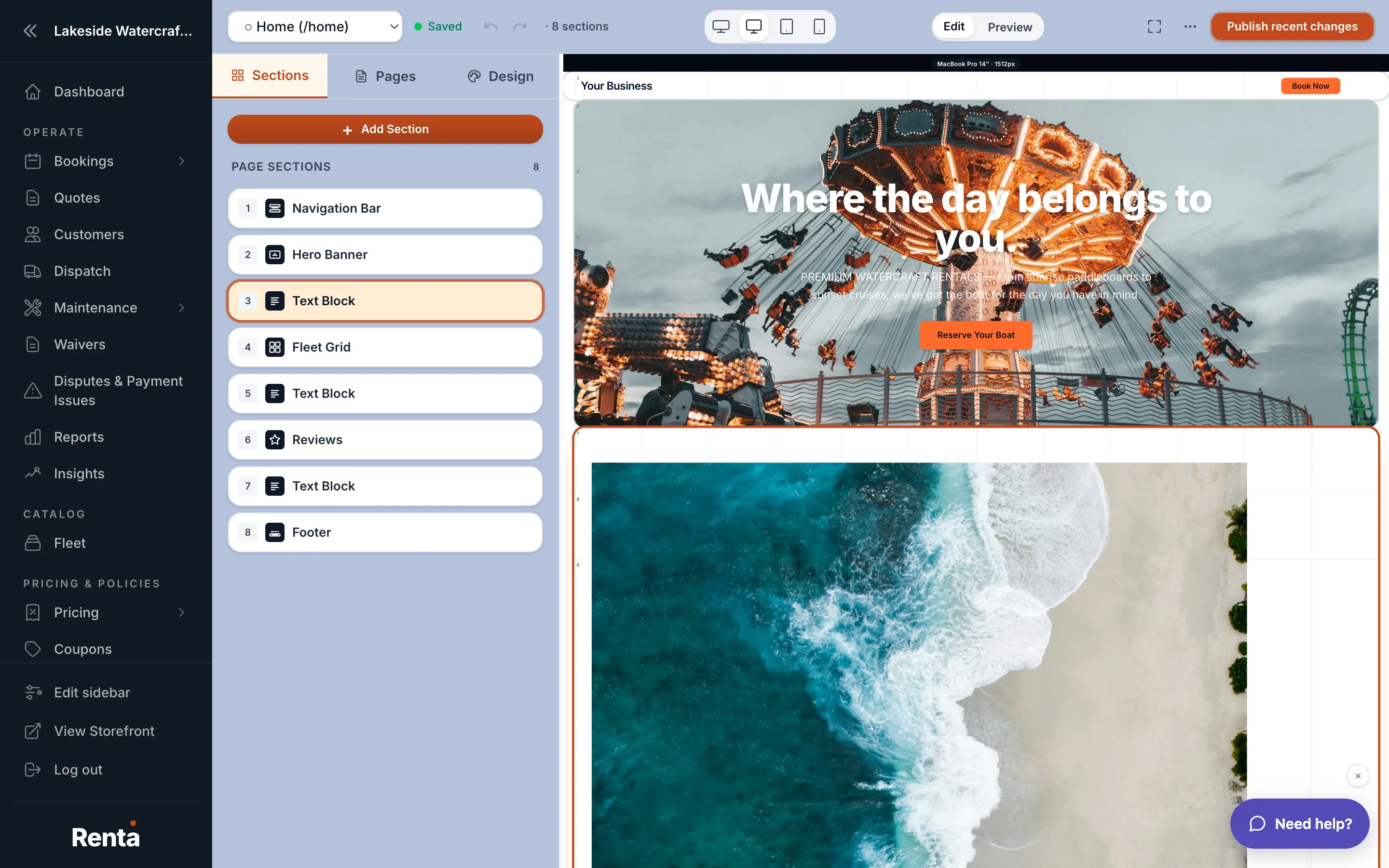 The Site Builder canvas with the widget picker and properties panel open
How it works
- Canvas area: the middle of the screen, showing your page as a 10-column grid. Widgets snap to this grid so things line up automatically.
- Widget picker: the panel where you choose a widget type to add — drag it onto the canvas or click to drop it in.
- Properties panel: opens when you click a widget already on the page. This is where you edit that widget's text, images, and settings.
- Page and theme tabs: switch between the different pages of your site, or switch to editing your site-wide theme (colors, fonts, spacing).
- Top bar: undo/redo your last changes, zoom the canvas in or out, switch between desktop/tablet/mobile preview, and save or publish your page.
Example
Say you want a new "About Us" page. You'd create the page, drag a Hero Banner widget to the top for a big photo and headline, then a Text Block widget below it for your story, and finally a Contact Map widget at the bottom so visitors can find you.
Good to know
- Nothing goes live until you publish — saving keeps your changes as a draft you can keep editing.
- Every widget you add can look different on phones than on desktop. See Making your site look right on phones and tablets.
- Colors, fonts, and spacing that every widget shares live in the theme tabs, not in each individual widget. See Setting your site-wide colors, fonts and spacing.
Related
Still stuck? Ask the chat.