Your logo, brand colors, and fonts
Customize how your storefront looks with your own logo, favicon, primary and accent colors, and typography.
Where to find it
Settings → Brand
The Brand page controls how your storefront looks to customers — your logo, browser tab icon, brand colors, and the fonts used for headings and body text.
Where to find it
Settings → Brand.
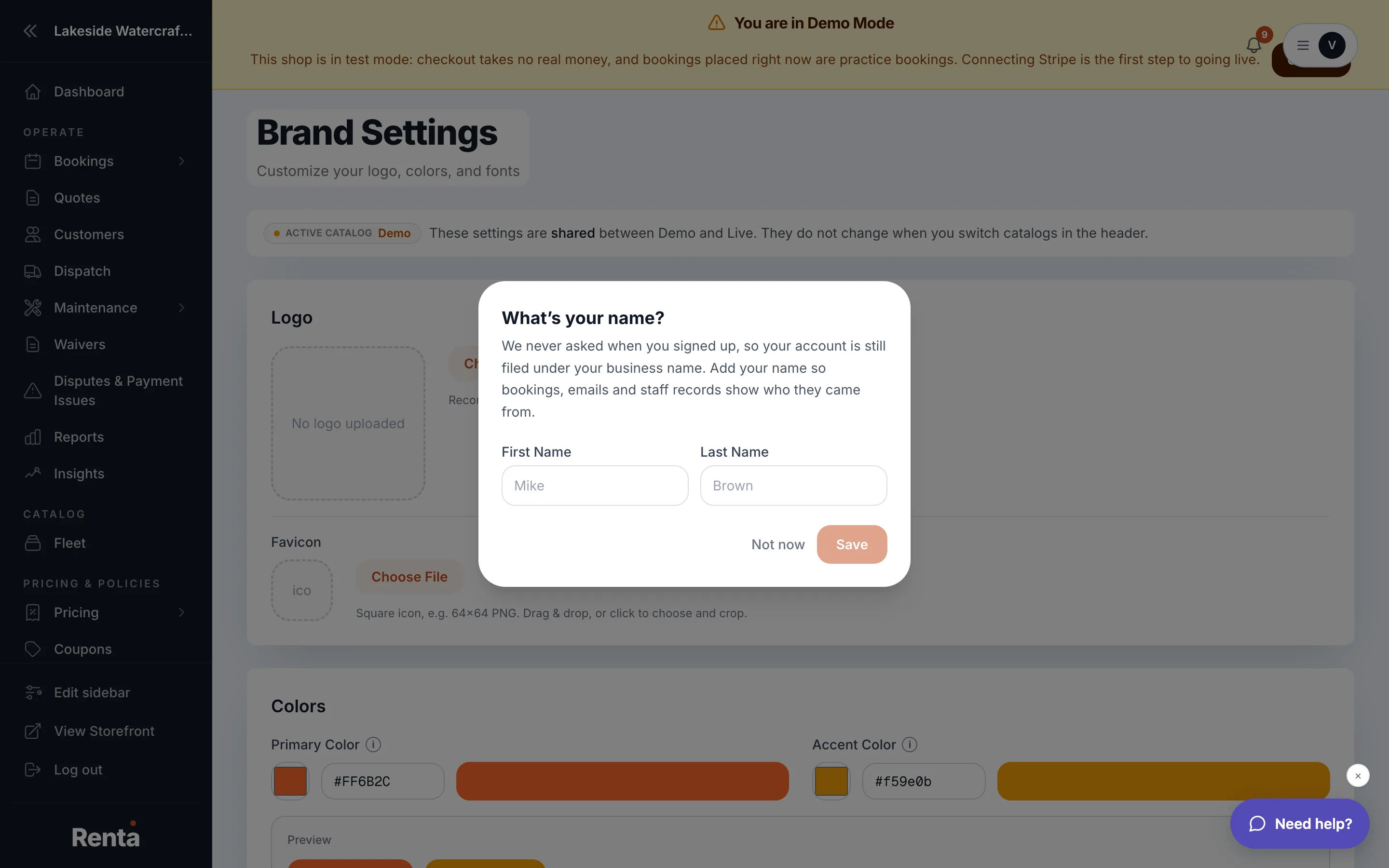 The Brand page showing Logo, Colors, and Typography sections
How it works
- Logo upload — an image you upload that replaces the logo in your storefront header, with a live preview.
- Favicon upload — the small icon shown in a browser tab. A 32×32 or 64×64 pixel image is recommended, shown in a mock browser tab preview.
- Primary color — your main brand color, used on buttons, links, and highlights. Defaults to Renta orange (#FF6B2C).
- Accent Color — used for secondary highlights and badges, not your main buttons. Defaults to amber (#f59e0b).
- Heading Font and Body Font — dropdowns of Google Fonts (Inter, Poppins, Roboto, Open Sans, Montserrat, Lato, Oswald, Raleway), each shown rendered in that font. Both default to Inter. A live preview shows sample text in your chosen fonts.
Example
If your brand color is a deep blue, set Primary color to that hex value — every "Book Now" button and highlighted link on your storefront updates to match.
Good to know
- Font and color changes apply storefront-wide immediately after saving — always check the live preview before saving.
- This only affects your public storefront's look; your own admin dashboard's appearance is controlled separately in Admin dashboard appearance.
Still stuck? Ask the chat.