Customizing how your own admin dashboard looks
Set background images and animation effects for your team's admin view — this does not change what customers see.
Where to find it
Settings → Appearance
The Appearance page customizes how your own admin dashboard looks for your team — it has no effect on what customers see on your storefront.
Where to find it
Settings → Appearance.
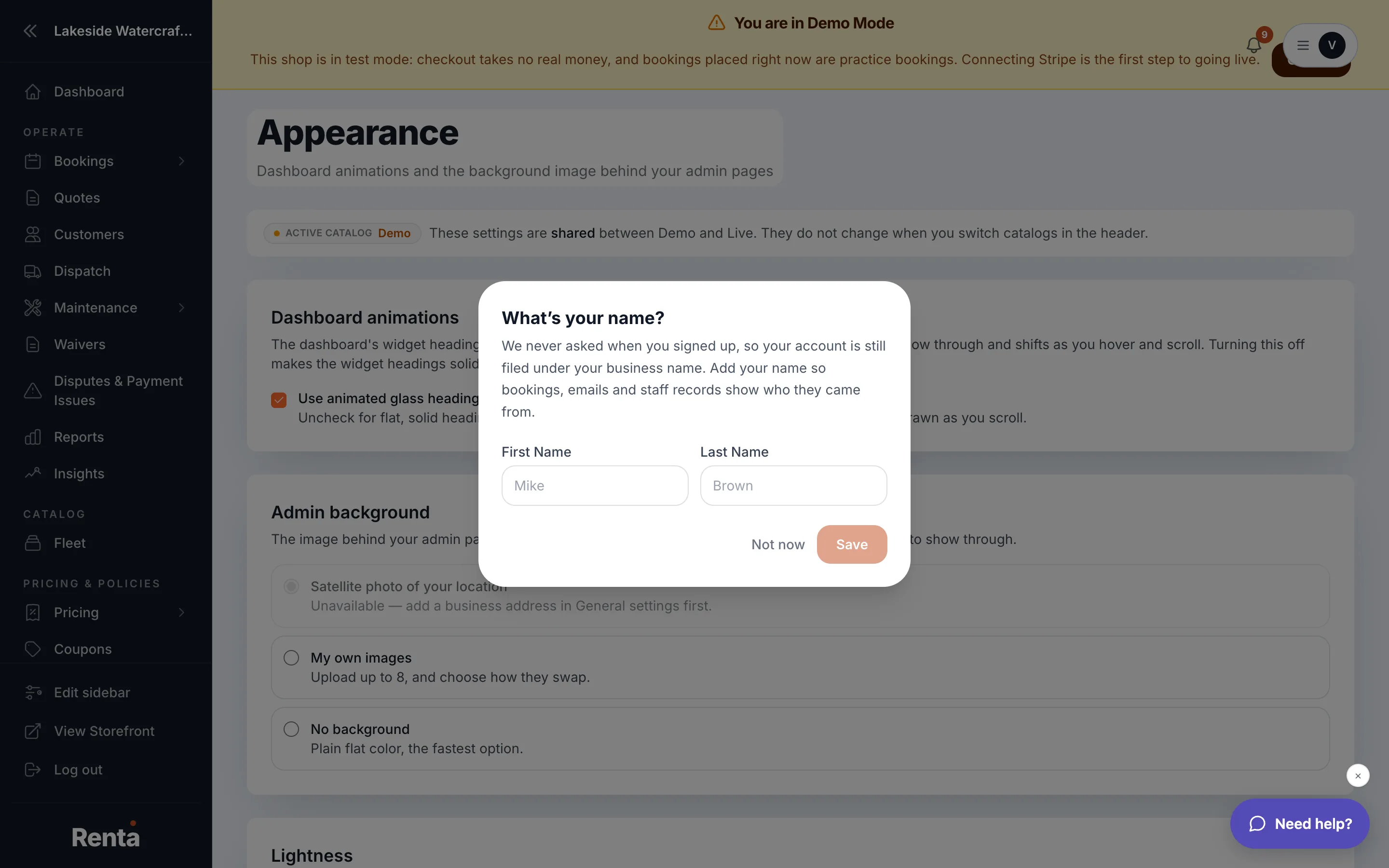 The Appearance page with animation toggle and background image list
How it works
- Use animated glass headings — a toggle for a smooth animated glass effect on dashboard headings. On by default; purely visual, with minimal performance impact.
- Admin background — upload one or more images that appear as your dashboard's background. Each has a delete button, and you can arrange them in a list.
- How they swap (shown once you have more than one image) — three choices: Don't swap (always show the first image; the default), Pick one at random each time a page loads, or Rotate on a timer while you work.
- Swap every [X] seconds — only shown when Rotate on a timer is selected. Sets how often the background changes, from 5 to 600 seconds.
- Change with a — the transition style used when the background changes: Fade, Slide, or Instant cut. If your computer is set to reduce motion, Fade and Slide both become an instant cut automatically.
Example
If you upload three background photos of your fleet and choose Rotate on a timer with Swap every set to 60 seconds, your team's dashboard background changes to a new photo, with a Fade transition, once a minute while they're working.
Good to know
- These settings only change your team's own admin view — see Your logo, brand colors, and fonts for the customer-facing storefront look.
- Swap every and Change with a only appear once Rotate on a timer is selected, and only once you have more than one background image uploaded.
Still stuck? Ask the chat.