Notes your staff see during checkout
Internal reminders that pop up for your team at key moments in the booking flow — customers never see these.
Where to find it
Settings → Staff Notes
Staff Notes are short reminders that appear only for your own team, at specific points during a booking — separate from anything the customer sees or signs.
Where to find it
Settings → Staff Notes.
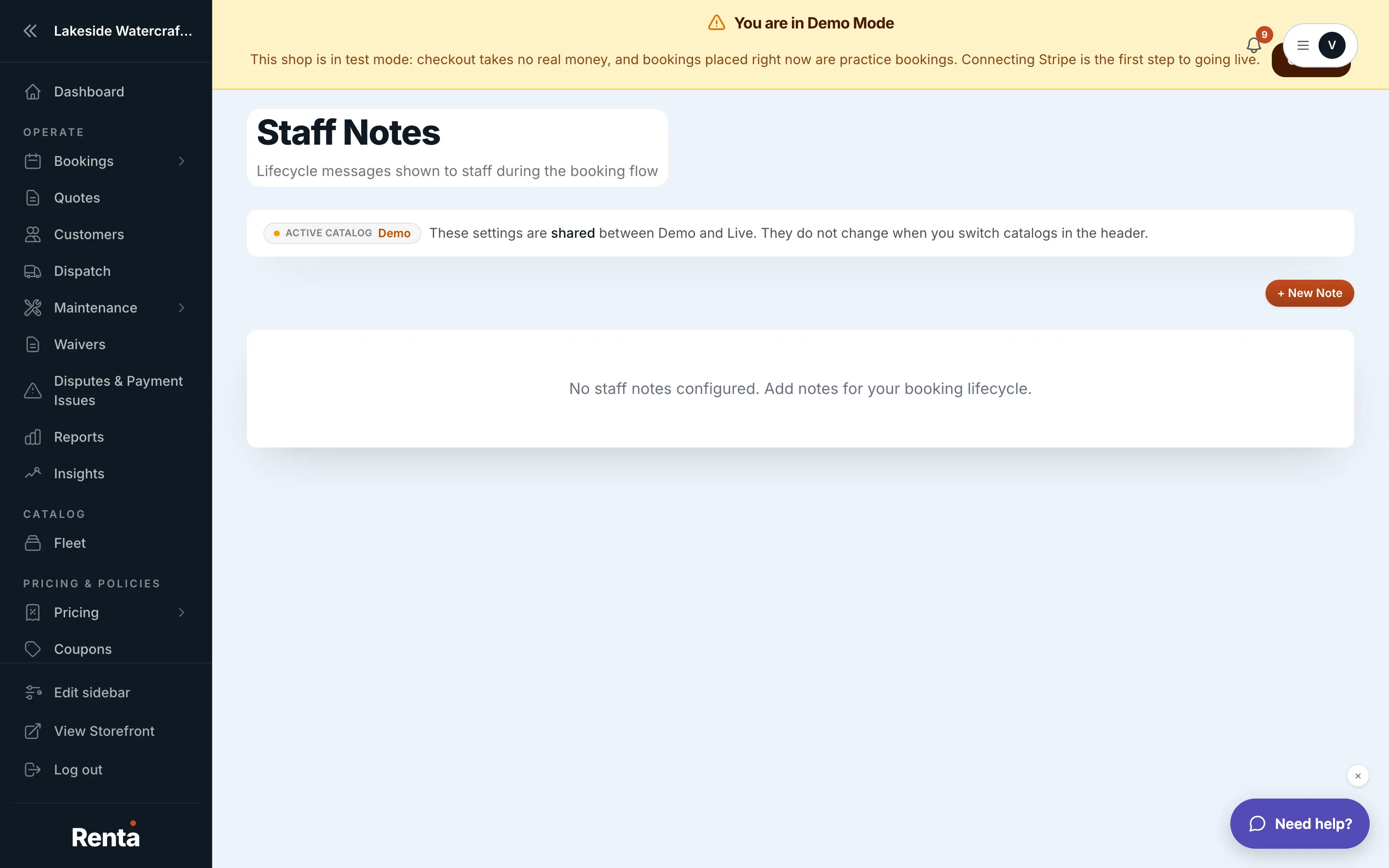 The Staff Notes settings page, showing the note list and editor
How it works
- + New Note — starts a new note. You can add as many notes as you want for the same moment in the booking flow.
- Note editor — write the note text and pick which lifecycle stage it should appear at (for example, before checkout, right after payment, or before the customer returns the item). Each note is saved on its own with Create Note (or Update Note when editing an existing one) — you don't have to save the whole list at once.
- Requires Acknowledgment — an optional checkbox on each note. When checked, staff have to actively confirm they've read the note before moving on, instead of it just being visible text.
- Drag to reorder — the note list can be dragged into whatever order you want your team to see them in.
Example
You add two notes for "before payment": one plain reminder ("Confirm the customer's ID matches the booking name") and one with Requires Acknowledgment checked ("Verify the deposit amount out loud with the customer"). Staff see both, but must actively check off the second before continuing.
Good to know
- These notes are for your team only — they never appear to the customer, unlike the checkout flow builder's blocks, which customers do see and interact with.
- Because each note saves individually, you can add or edit one note without disturbing the others.
Still stuck? Ask the chat.