Building and sending a quote
Pick items and dates, then send a shareable quote link the customer can accept without holding inventory.
Where to find it
Quotes → New quote, or Quotes → open a quote
Building a quote works like starting a booking, but it stops short of committing inventory until the customer says yes.
Where to find it
Quotes → New quote to create one; Quotes → click any row to open an existing one.
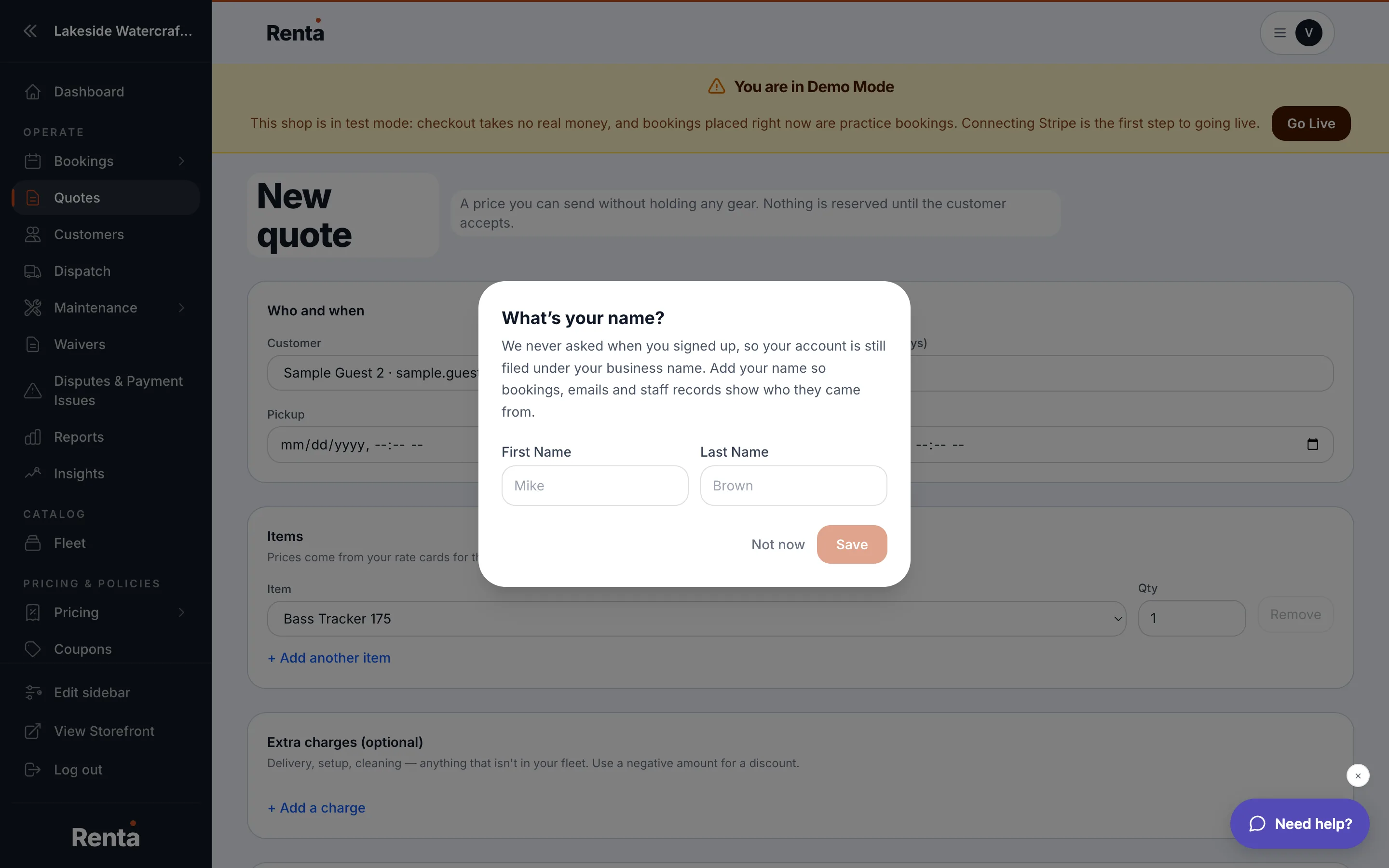 The New Quote form
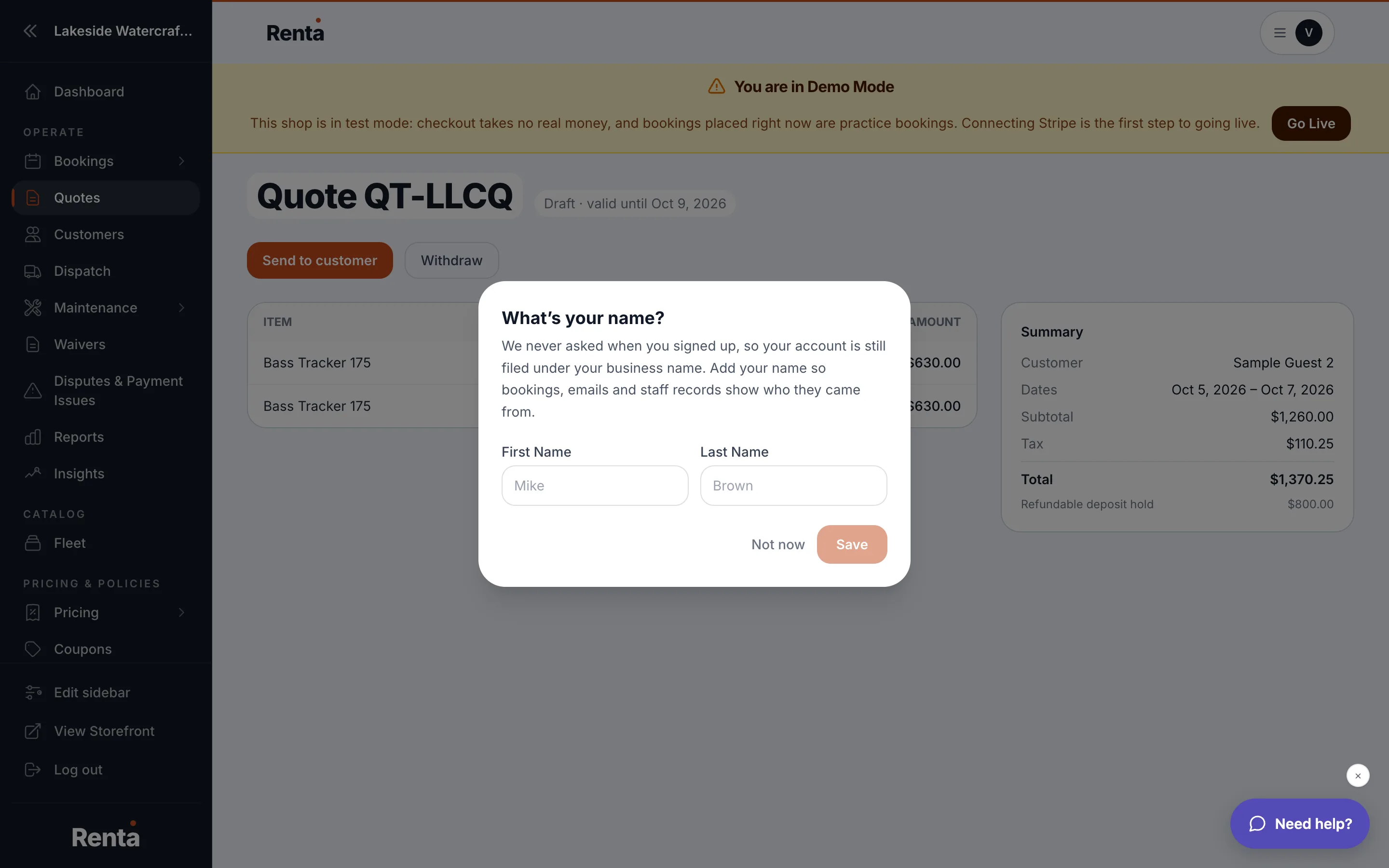 A quote's detail page with the Convert to booking action
How it works
- Customer lookup — search an existing customer or enter a guest email.
- Item selection — search your fleet, pick variant options, and set quantities.
- Pickup/return dates & times — a calendar picker.
- Pricing breakdown — an automatic, read-only itemized total.
- Customer email — optional, used to send the quote.
- Send quote — generates a shareable link, and emails it to the customer if you provided an address.
Once sent, a quote's detail page lets you Edit it (while still a draft), Send to customer, Convert to booking (once accepted), or Delete (while still a draft) — plus a change log of every status change and time it was sent.
Example
A customer wants pricing for a multi-day rental before deciding. Build the quote, send the link, and if they accept, open the quote and click Convert to booking — no need to re-enter anything.
Good to know
- Converting a quote to a booking is the only way a quote actually reserves the dates — until then, someone else could still book that inventory.
- See Sending a price quote before booking for what each status on the list means.
Still stuck? Ask the chat.