Setting up your pickup and dropoff locations
Add every physical spot where customers pick up or return your equipment, each with its own address, phone, and hours.
Where to find it
Settings → Locations
Locations are the physical spots where customers pick up and return your equipment. You can add as many as your business needs, each with its own address, phone number, timezone, and hours.
Where to find it
Settings → Locations.
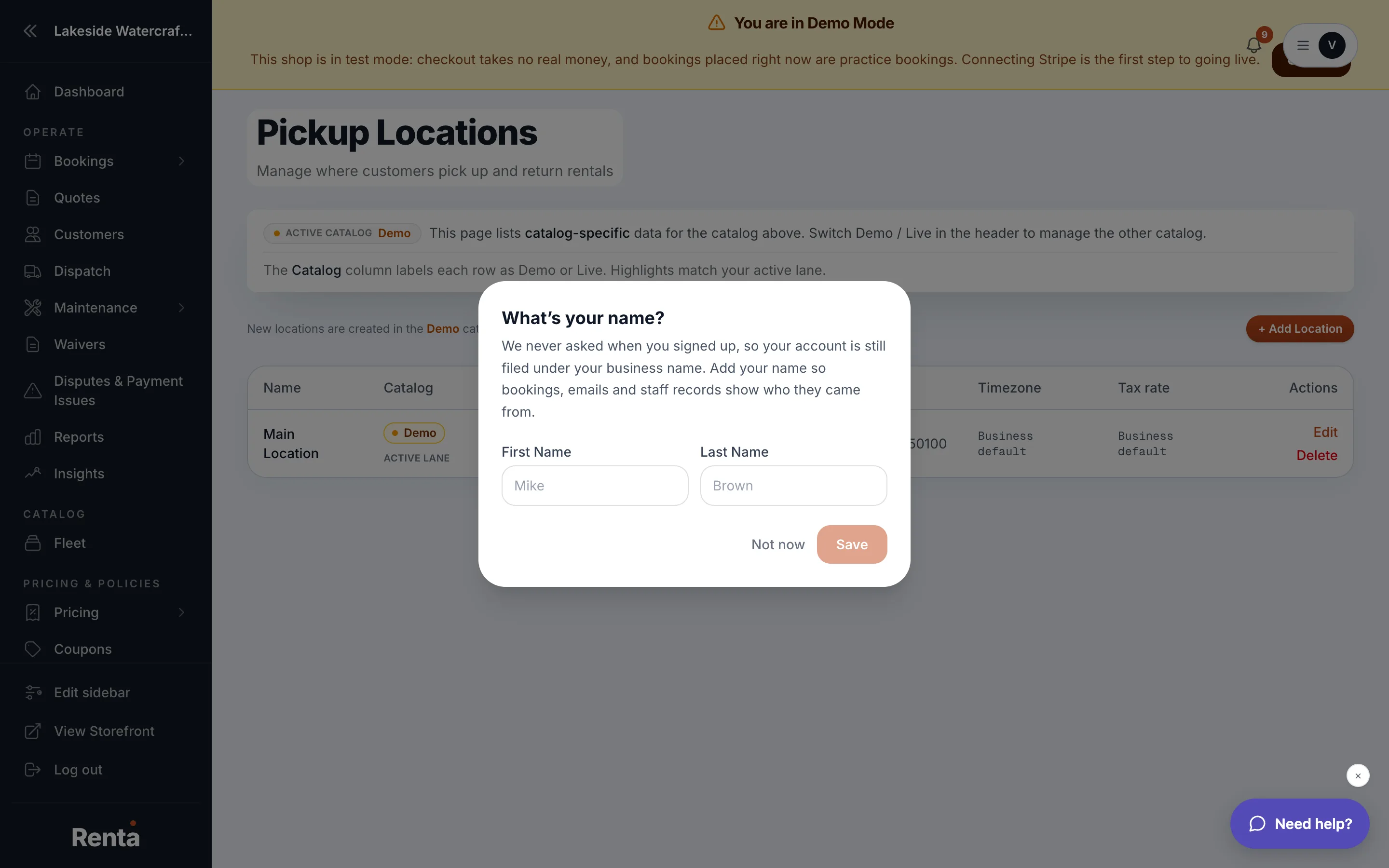 The Locations list with the Add Location button
How it works
- Name — what the location is called (for example, "Downtown Shop" or "Airport Counter").
- Phone — a phone number specific to this location, shown to customers.
- Address — the full street address, used on bookings and waivers.
- Location timezone — defaults to your overall business timezone, but you can set a different one for this location if it operates in another time zone.
- Operating Hours — open and close times for each day of the week, used to show customers when this location is available.
- Add Location button — creates a new location. Only an Owner can add one.
Example
If you run a shop downtown and a second counter at the airport with different hours, you'd add two locations — each with its own address and its own Operating Hours, so customers see the correct pickup window for whichever spot they choose.
Good to know
- A location's timezone can differ from your business's main Timezone if it operates in a different region.
- Every fleet item is tied to a location, so add your locations before assigning where items live.
Still stuck? Ask the chat.